Android app
The Mutara app connects your Android phone to your own node. It is a client: the node does the links and the radio, and the app carries your voice.
Note: The iPhone, iPad and Android apps are in internal testing now.
Connect to your node #
You need the dashboard address of the node and a dashboard account. To use the app away from home, the node must be available from the internet with HTTPS.
- Open the app.
- Tap Add a connection.
- Select Mutara node.
- In Dashboard address, type the address, for example
https://node.example.net:8443. - Type your user name and password. To listen as a guest, keep the user name empty.
- Tap Save.
- Tap Connect.
Result: The app says Connected, and you hear the node.
Note: A guest can listen only when the node permits public listening.
The app can also connect with an IAX user, as iaxRpt and DVSwitch Mobile do. This works with Mutara and with other AllStarLink nodes. Type the node address, the IAX user name and secret, and the node number. With an IAX user, the audio is narrowband.
Listen and talk #
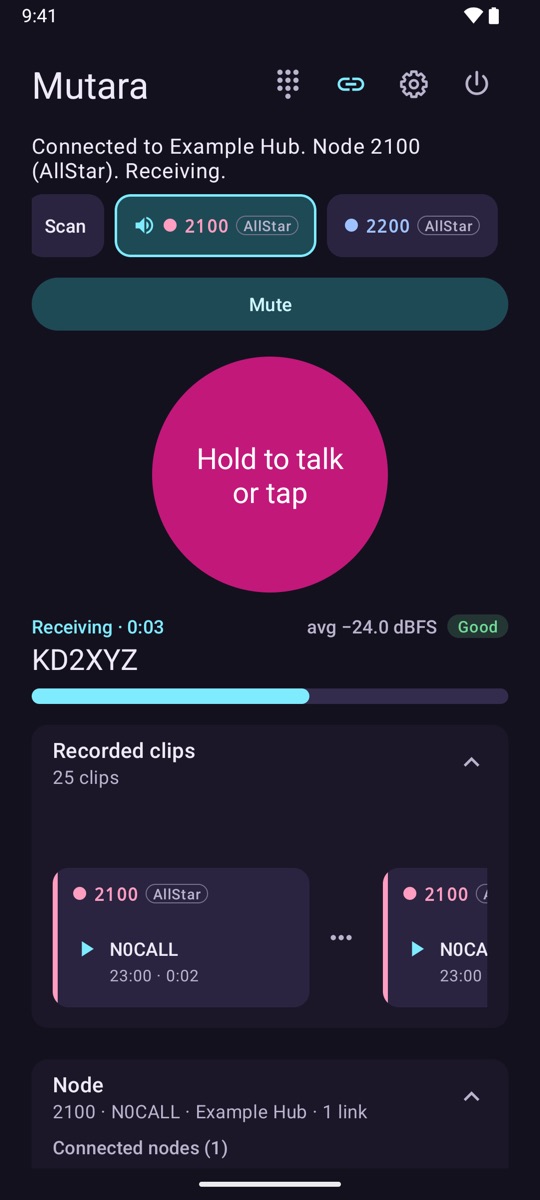
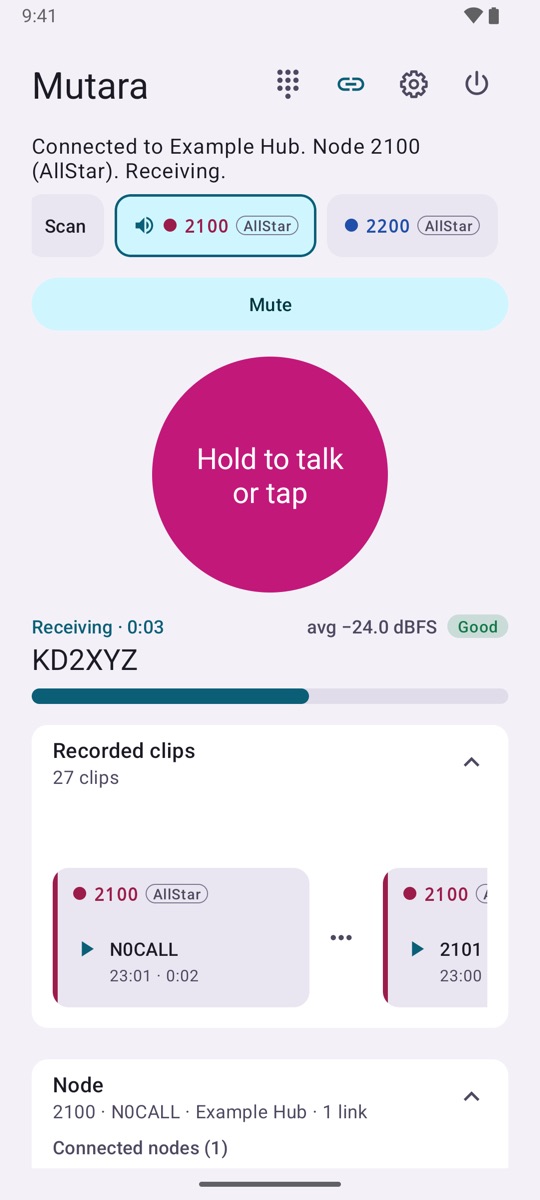
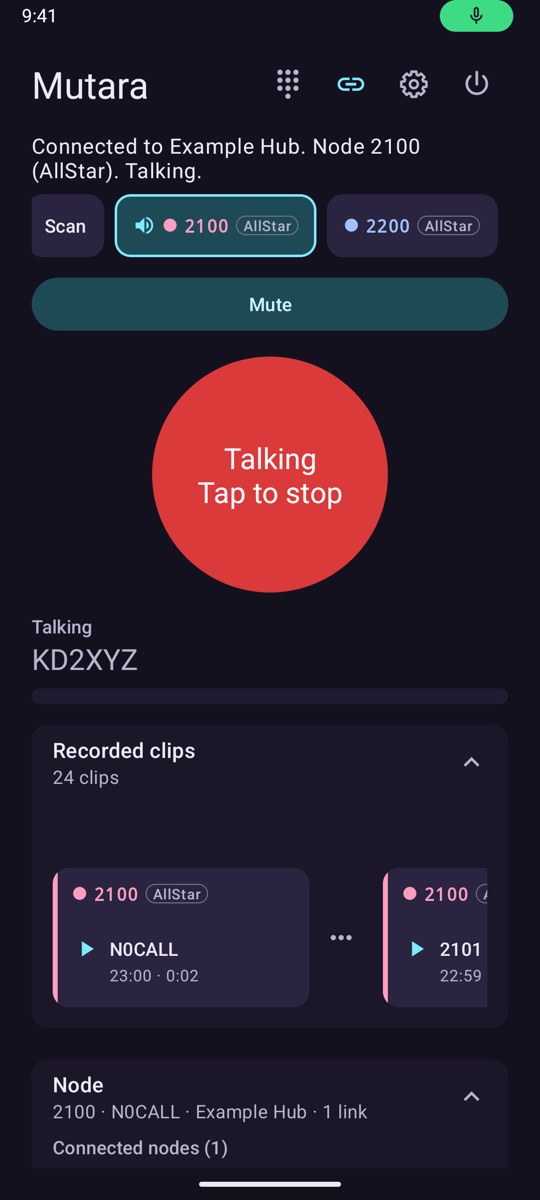
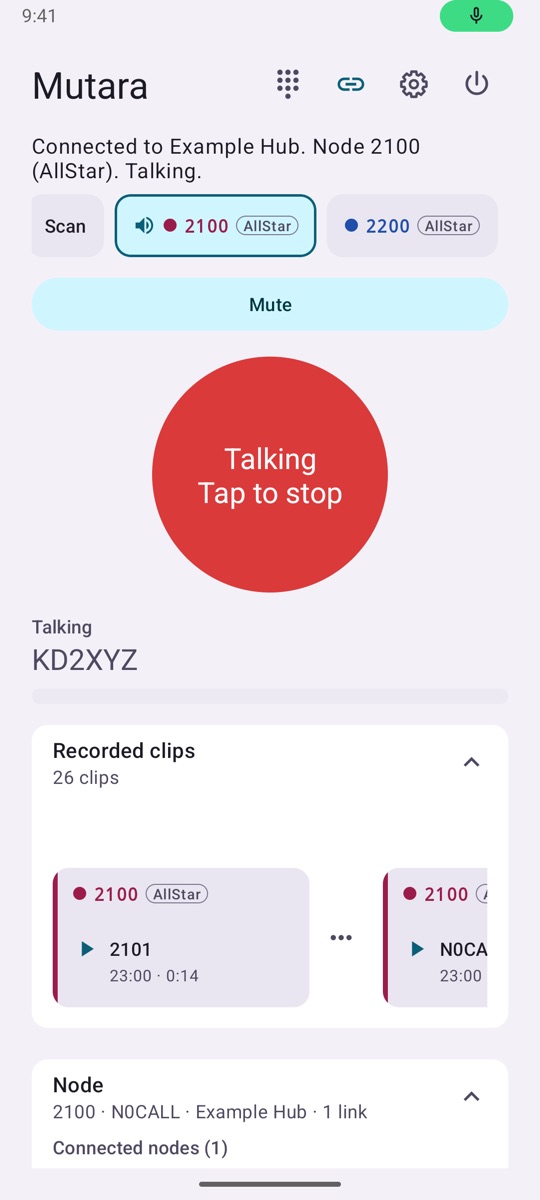
- Hold the talk button and speak.
- Release the talk button to stop.
Or tap the talk button one time to talk (tap to latch), and tap again to stop. To use only hold to talk, turn off Tap to latch in Settings. When you key, the phone plays a short talk permit chirp. Start to talk after the chirp. You can turn off the chirp in Settings.
The audio is full duplex: you hear the node while you talk. A transmission stops after 90 seconds, and when the app leaves the screen. While you talk, the app pauses audio from other apps.
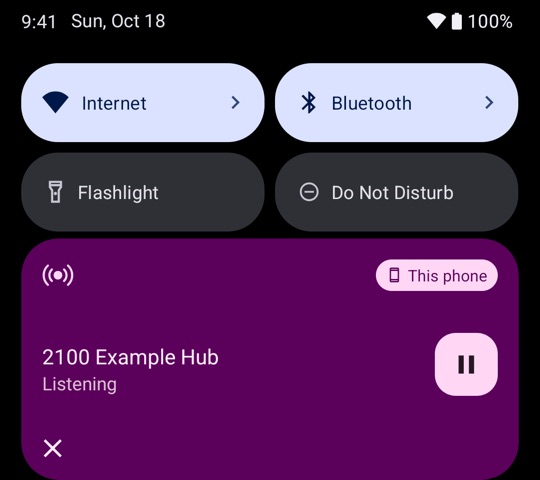
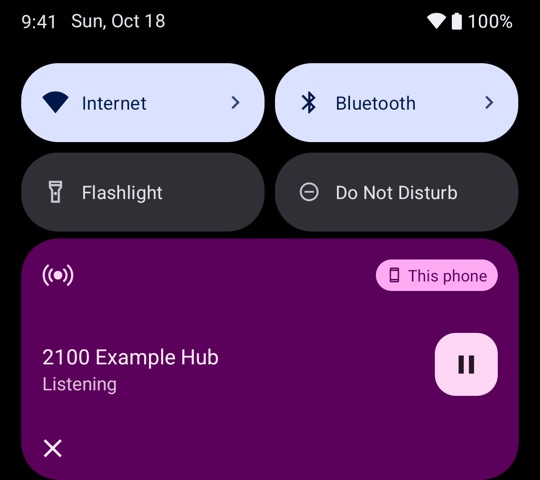
The audio continues when the screen is off. A notification shows that the app is connected. The lock screen, the media card and a car show the node and the connection name, for example "2100 Example Hub", and the state, for example Listening.
To examine your level, open Settings, then Microphone, and tap Check mic. Talk at a normal level. Set Mic gain until the app says Good level.
Car mic
By default, the app uses the phone mic, also in a car. When a car or a Bluetooth headset with calls is connected, a Car mic switch shows under the talk button. Turn it on to talk through the car's mic. It is off by default, and the app keeps your choice.
The car mic uses call audio. The sound quality is lower (narrowband), and the car can show a call while you talk. When you key, the app starts the call audio first, and then plays the chirp in the car. The call audio stays on for the time in Other audio comes back after, so that a quick reply does not wait for it. Then the car goes back to its normal audio.
If the call audio does not start in about 2 seconds, the app uses the phone mic and tells you. If the car is not connected when you key, the app uses the phone mic and tells you one time. A change applies the next time you talk.
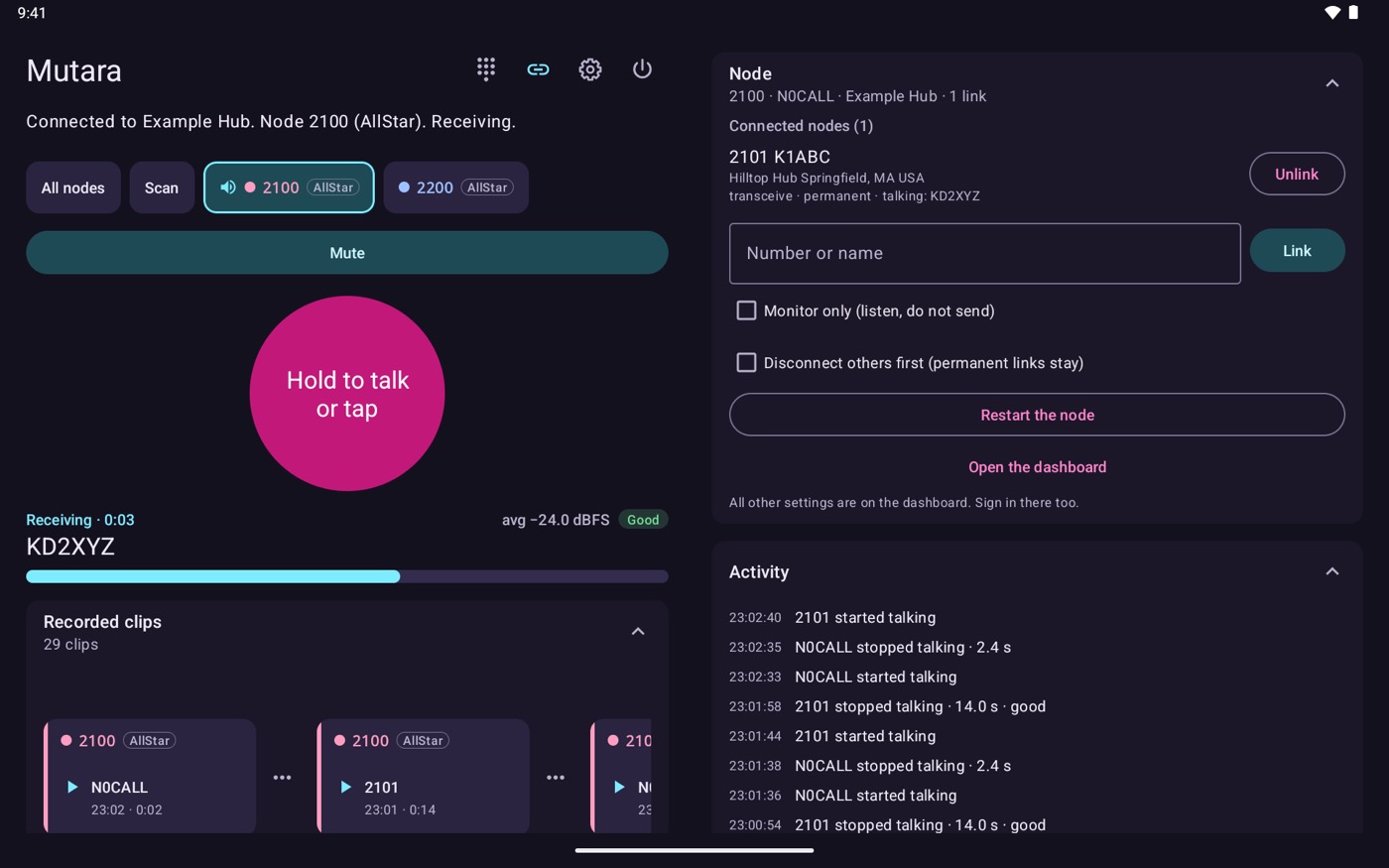
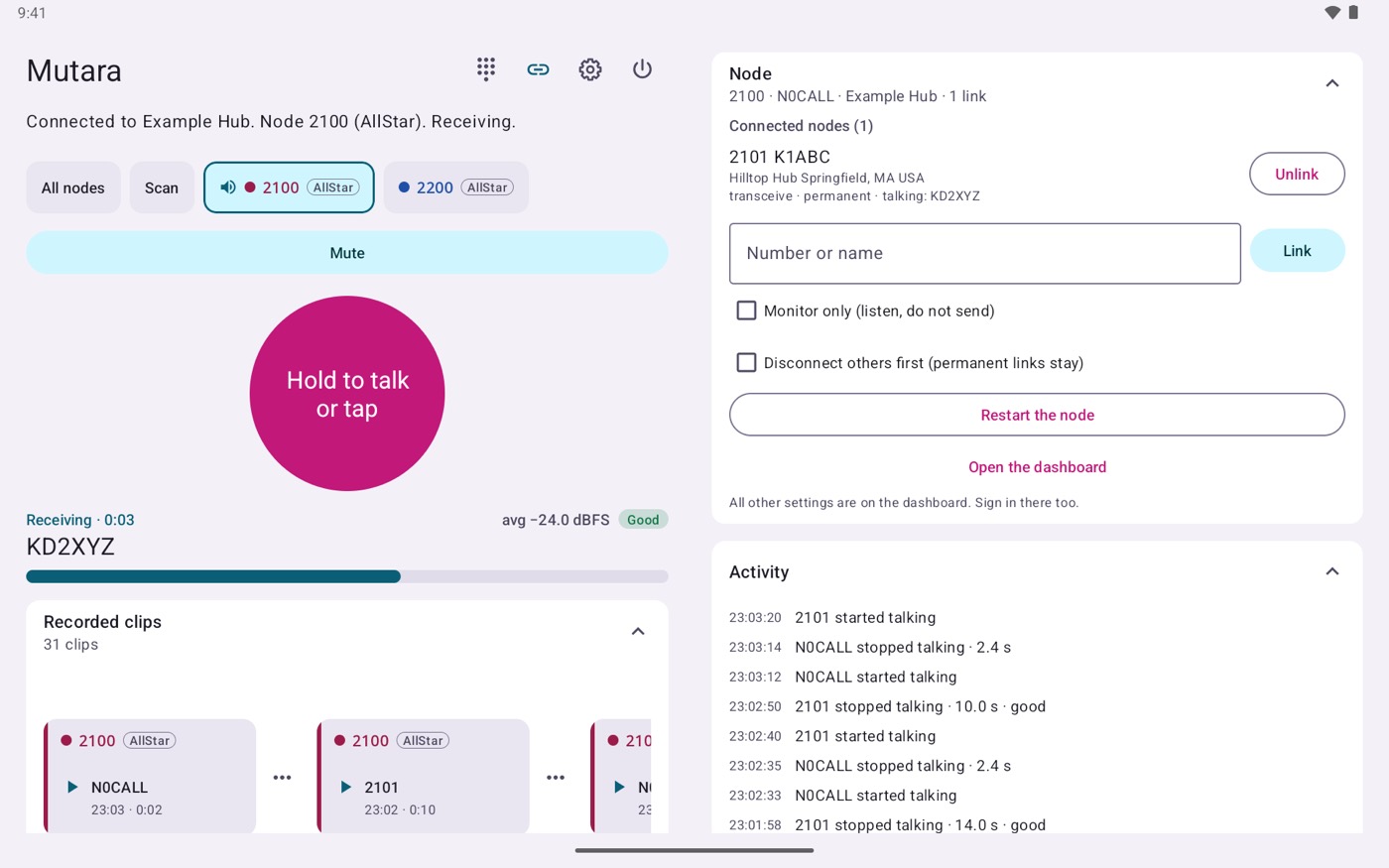
On a tablet, or a phone in landscape, the app uses two columns. The talk button, the receive strip and the recorded clips are on the left. The node panel and the activity of the node are on the right.
Link nodes from the app #
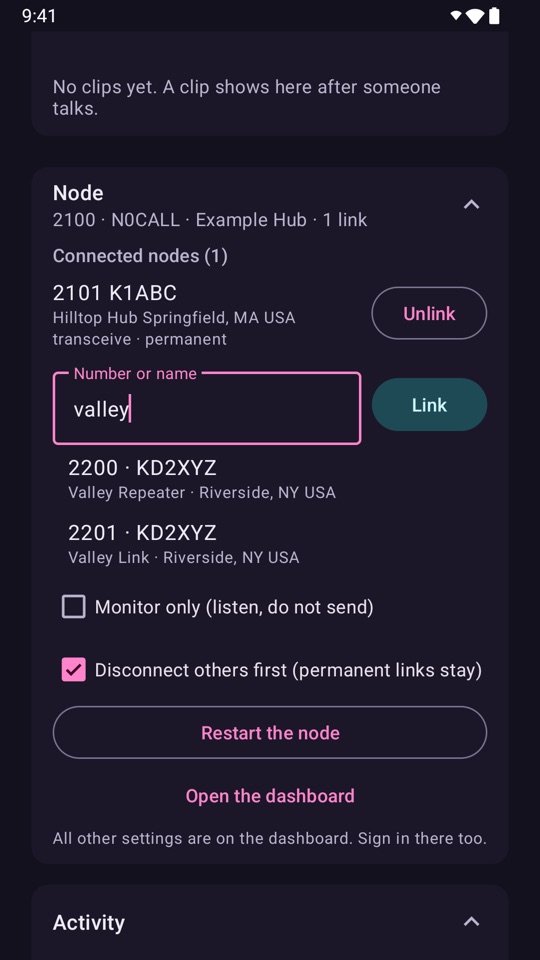
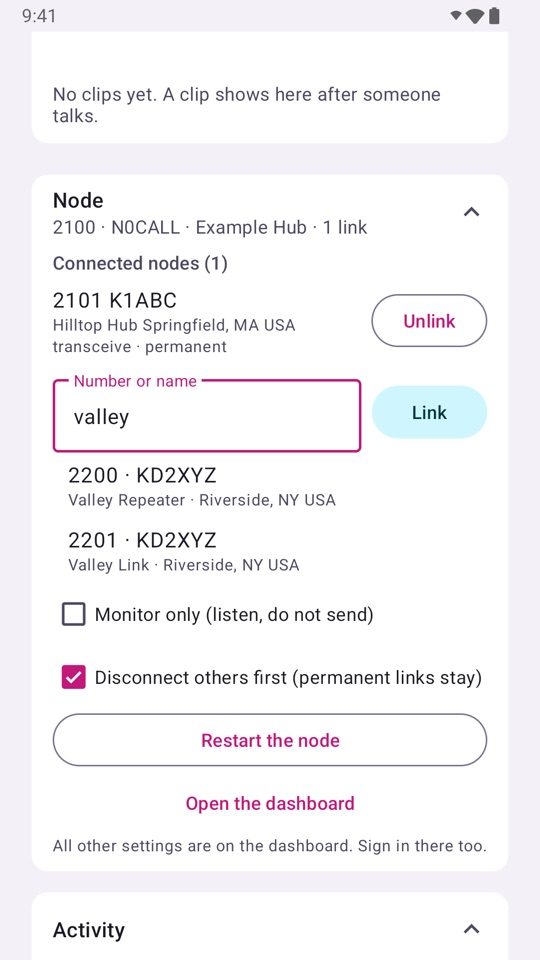
- In the node panel, type a node number or a name.
- Select the node in the list.
- Tap Link.
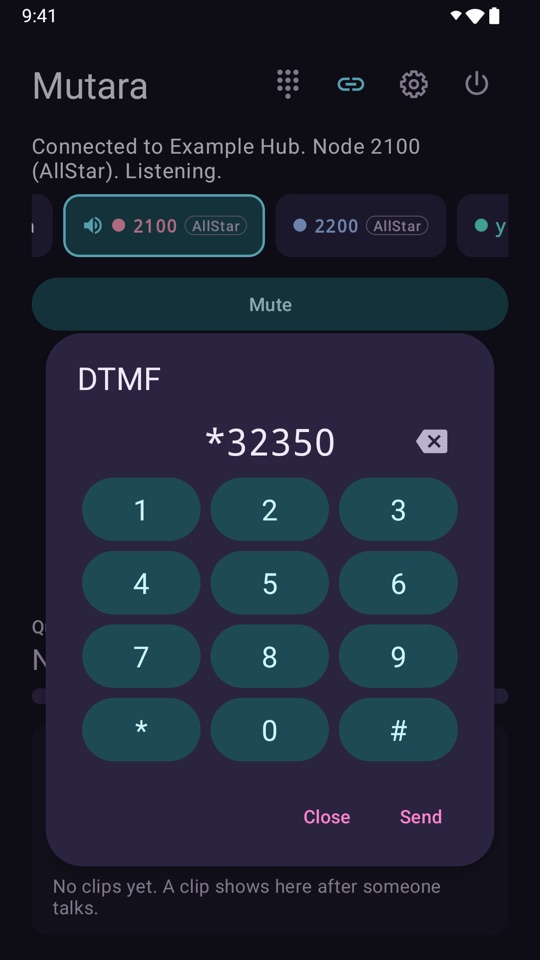
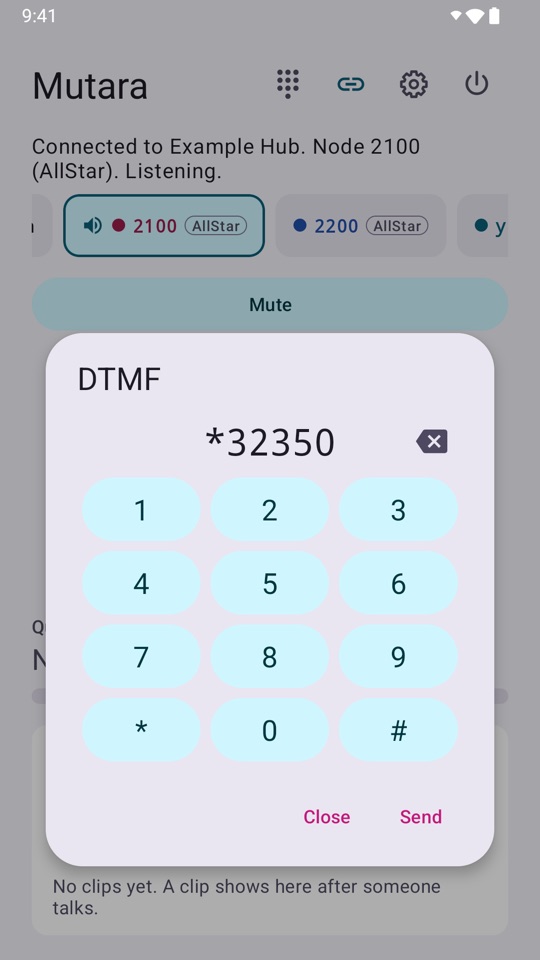
To drop a link, tap Unlink. To send a DTMF code, open the DTMF keypad, type the code and tap Send. Your account must have Link and DTMF on the node.
Recorded clips #
If the node records clips, Recorded clips shows them. Tap a clip to play it. The app plays the newer clips, then goes back to live audio. Tap Back to live to stop. You can save a clip or share it as an M4A file, when you may save the clips of the node.
The menu of a clip has Save clip, Share clip when you may save the clips, and Delete clip for admins and managers of the node. It can also have Show transcript, Transcribe or Transcribe again, and Bundle from this clip. The Bundles button opens the bundles of the node. Read Bundles and transcripts.
Modules and scan in the app #
The app works with the modules of Mutara 0.1.0-beta.55 or later. Read Nodes and modules.
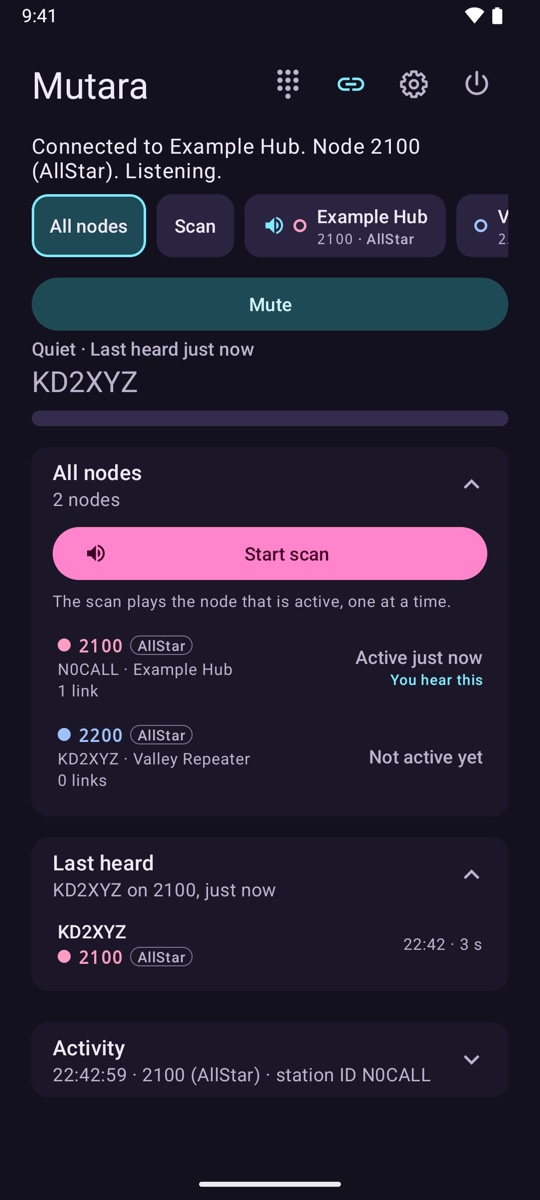
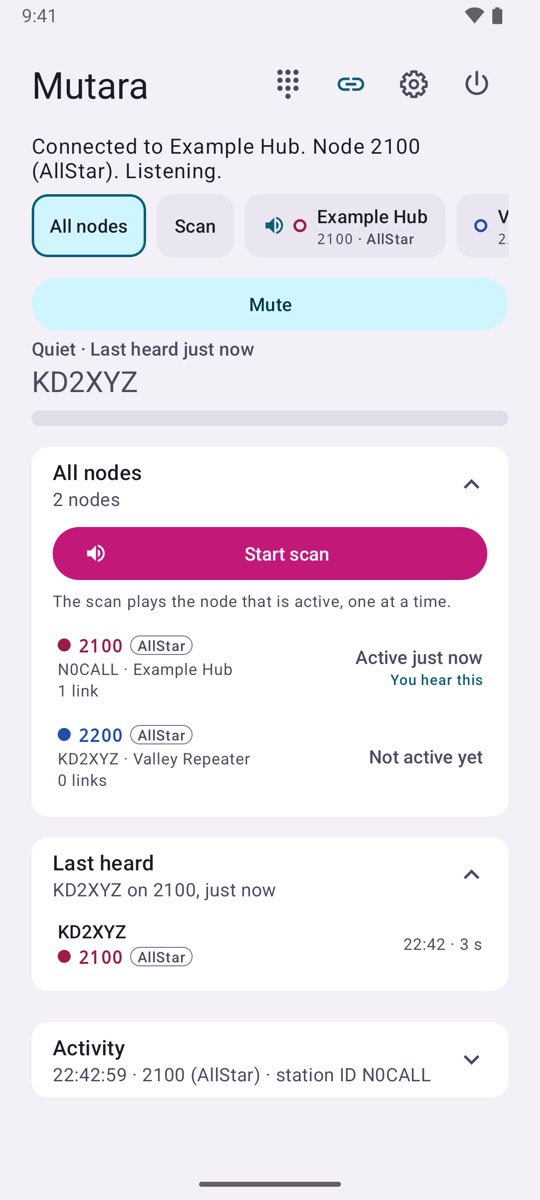
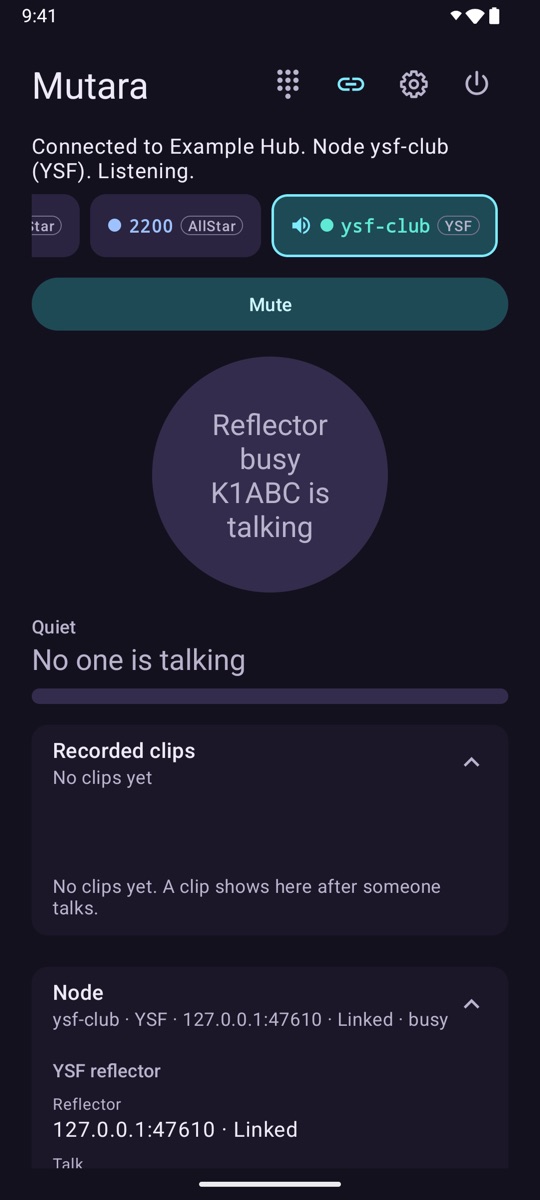
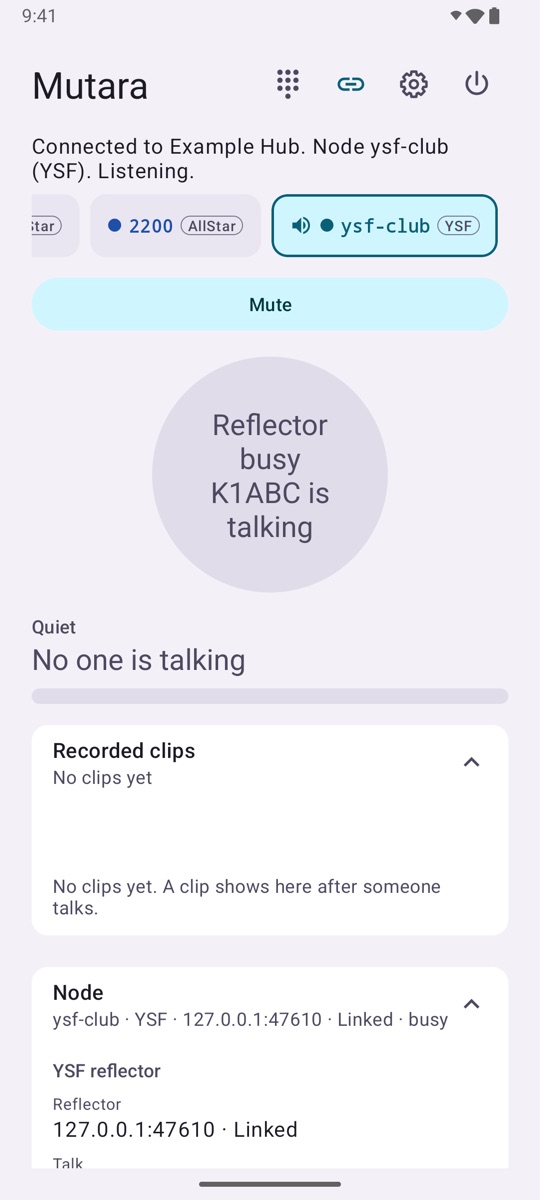
- All nodes. The top row has All nodes, Scan and a button for each module. The All nodes view lists each module with its state, for example Active now. Tap a module to listen and talk on it.
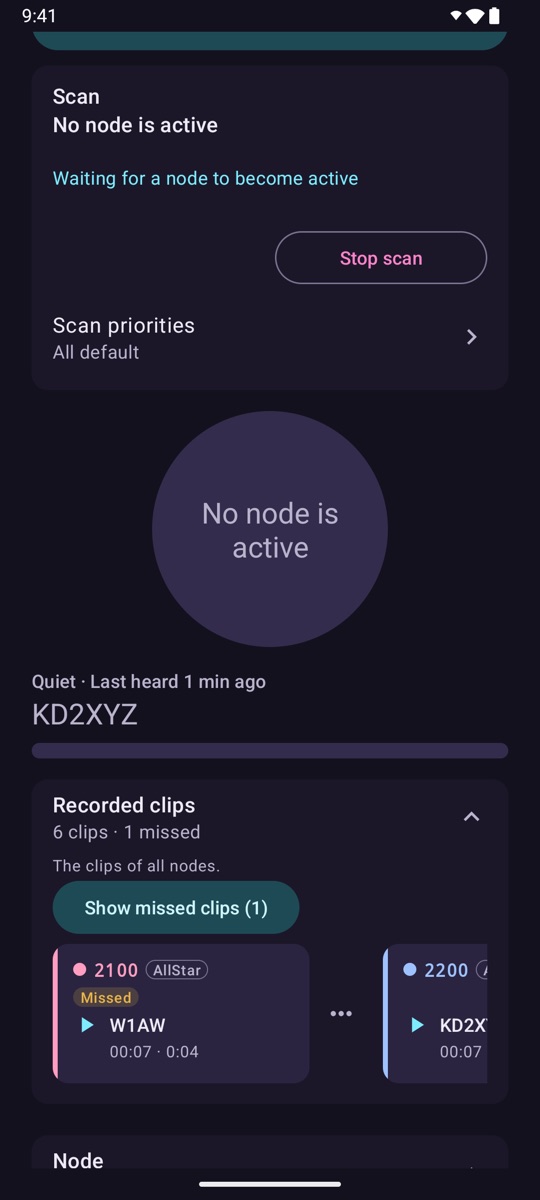
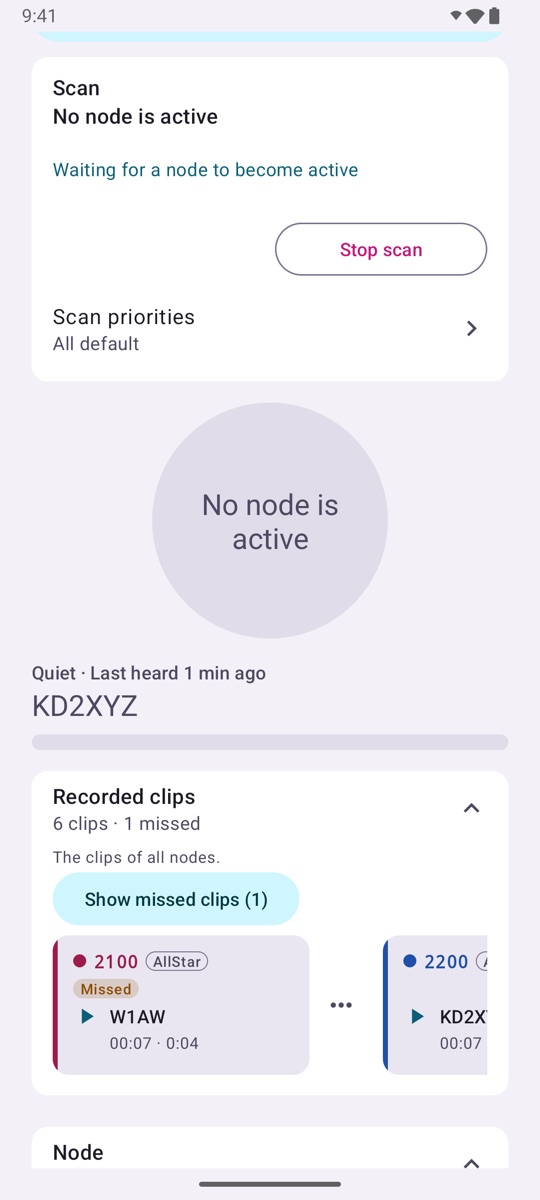
- Scan. Tap Start scan or Scan. The Scan dialog asks for Scan all or Scan my list. The Scan card shows the mode. Tap Change to pick the other mode. When your list is empty, tap Choose modules or Scan all. The app plays the active module, as the scan on the dashboard does. Tap Skip this node or Stop scan. The hang time and Skip IDs and announcements are in Settings. Hold the talk button to talk on the module that you hear.
- Scan priorities. Tap Scan priorities on the Scan card or in Settings. The app opens the Scan priorities screen. The audio continues while it shows. Turn In my scan on or off for each module. Read Make your scan list. Tap − or +, or type a number from 0 to 99. Tap Use default to use the default of the admin again. An admin sets the defaults in the Scan priorities panel on the web dashboard. The node keeps your values for your account, so the app and the dashboard use the same values. Read Set the priority of a module.
- Waiting. While you talk back, a module with a higher priority shows as waiting, for example "ysf-club (YSF) waiting · priority 92".
- Clips. Recorded clips shows the clips of all modules, with the module of each clip. After a scan, Missed marks the clips that you did not hear. Tap Show missed clips to see only those clips.
- YSF. On a YSF module, the talk button shows Reflector busy while a station talks on the reflector.
Rooms #
Rooms, Scan my list and bundles need the app 0.2.0 or later, and Mutara 0.1.0-beta.58 or later on the node.
A room shows in the module bar. Tap it to join. Read Rooms.
- The Room card has the pill Off the air. The app says Only the members of this room hear you. When visitors can listen, it also says Visitors can hear this room.
- The Members list shows each member, who talks and who has open mic.
- Tap Open mic to talk without the talk button. Use headphones.
- When the room stops your talk, the app shows the reason and the time until you can talk again.
- A user who manages the room sees Interrupt, and Stop on each member who talks. To remove a member, use the dashboard.
Bundles and transcripts #
A bundle joins clips into one recording with chapters, a net log and a transcript. Read Bundles and transcripts.
- In Recorded clips, open the menu of the first clip and tap Bundle from this clip.
- Select where the bundle stops: To the newest clip, To another clip, To a time or a number of quiet minutes.
- Type the Title, for example Tuesday club net. The description is optional.
- Tap Make bundle.
Tap Bundles in Recorded clips to see the bundles of the node. On the Bundles screen, New bundle starts a bundle too. A bundle has the buttons Share link, Share audio, Download zip, Edit, Make transcript or Transcribe again, and Delete. Below are Chapters, Transcript, Net log and Public links. A transcript line that the speech to text was not sure of has the mark Not sure.
To share a link, tap Share link. Select The link works for and, if you want, Allow download. Tap Make link. Copy the link at once: the app shows it only now. The buttons show only when you may use them.
Settings #
Tap the gear in the top bar to open Settings. The main screen keeps only what you use to listen and talk. Settings has five sections:
- Playback
- Node volume. Make quiet and loud stations the same level. When the node talks: lower or pause other audio, and Other audio comes back after. Voice boost, from 0 to +20 dB.
- Listening buffer
- Auto or Manual, the buffer now and the gaps.
- Microphone
- Mic gain, Auto level and Check mic for each saved connection. Mic input, Talk permit chirp and Tap to latch for all connections. The chirp and Tap to latch are on by default. Mic input is Automatic by default: the phone chooses, and never uses the car or a Bluetooth mic. You can also choose Phone mic, Car or Bluetooth mic (call audio, the same as the Car mic switch) or Wired or USB mic.
- Scan
- The hang time, Skip IDs and announcements and Scan priorities.
- About
- The version of the app.
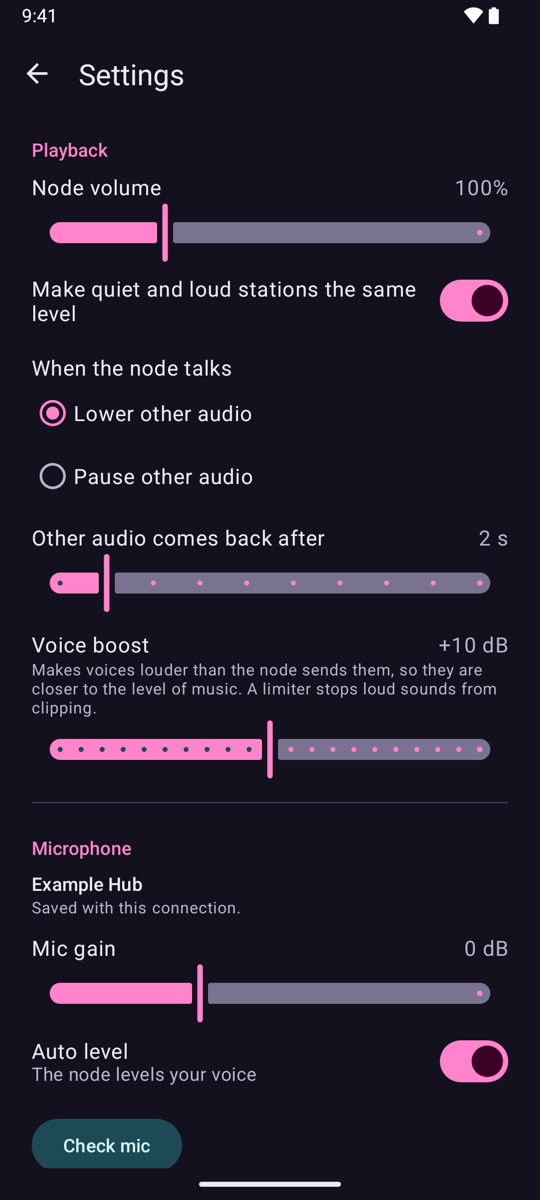
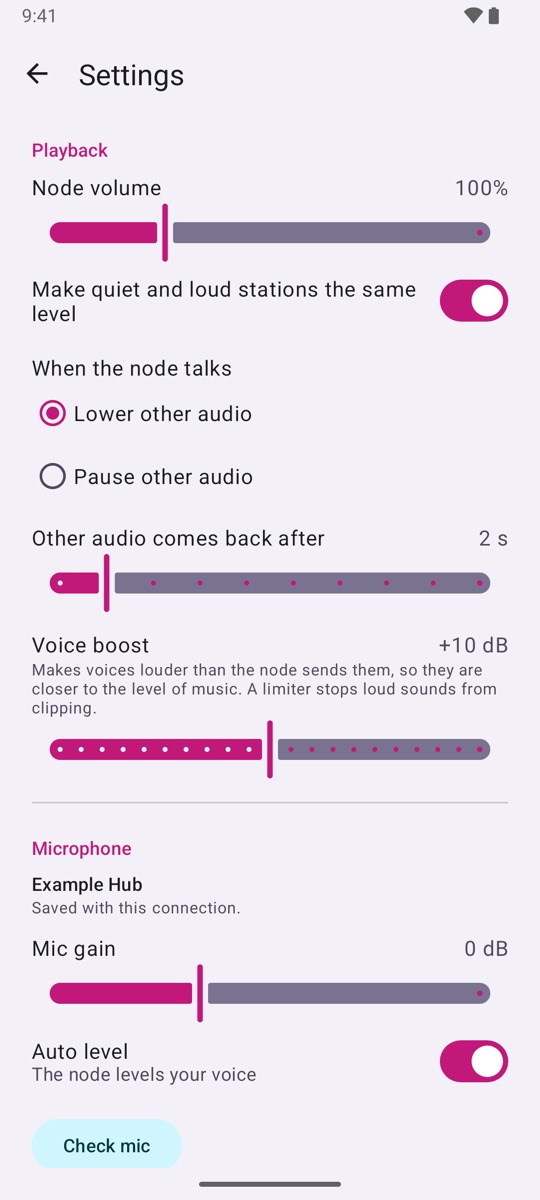
Voice boost makes the voices louder on your phone only, so that they are closer to the level of music, for example in a car. The default is +10 dB. A limiter stops loud sounds from clipping. 0 dB changes nothing. Voice boost does not change what the node or other users hear.
In Listening buffer, node audio waits here for a short time, so that late packets do not make gaps. A bigger buffer gives fewer gaps and more delay. Select one of these:
- Auto (the default). The app measures how late the packets are and sets the buffer from 60 to 300 ms. It keeps a value for Wi-Fi and a value for cellular. After a network stall (the late packets then come all at once), the buffer gets bigger at once. A pause of the node, for example before a courtesy tone, does not count. When the network is good again, it gets smaller after each transmission with no gaps, in the pauses of speech. A single stall does not keep the delay high for long. Buffer now shows the value, the network and the gaps in the last transmissions. Before the first measurement, it says Measuring. This takes about a minute of audio from the node.
- Manual, from 40 to 500 ms in steps of 20 ms. A mark on the slider and the line Recommended: N ms on Wi-Fi show the value that Auto would use. Tap Use N ms to set it. If your value is much lower and there were gaps, the line says Gaps are likely at this value. Before a measurement, it says Not measured on Wi-Fi yet.
While you listen on Wi-Fi, the app keeps Wi-Fi out of power save, so that packets come at an even pace. This uses more battery. To let Wi-Fi save power, tap Mute.
When a packet does not come in time, the app makes a short sound from the audio before it, so that you do not hear a click.
The settings of the node are on the dashboard. To open it, tap Open the dashboard in the node panel, and sign in there.
When the network changes #
When the phone changes from Wi-Fi to cellular, the app connects again at once. If the connection stops, the app tries again after 2, 4 and 8 seconds, up to every 30 seconds. With no network, the app says No network. Waiting for a network, and it connects when a network comes back. The node keeps its links while the phone is away.
Trust the certificate of the node
A node with its own self-signed certificate is not signed by a known authority. The first time, the app shows Trust this node? and the SHA-256 fingerprint of the certificate.
- On the dashboard, open Settings, then Health.
- Compare the certificate fingerprint there with the fingerprint in the app.
- If they are the same, tap Trust.
Caution: If the app says The certificate changed and you did not change the certificate, someone can be between the phone and the node. Compare the fingerprints again before you tap Trust the new one.