Use the dashboard
The dashboard is the web page of your node. Use it to listen, talk, see who talks and control the links.
The parts of the dashboard #
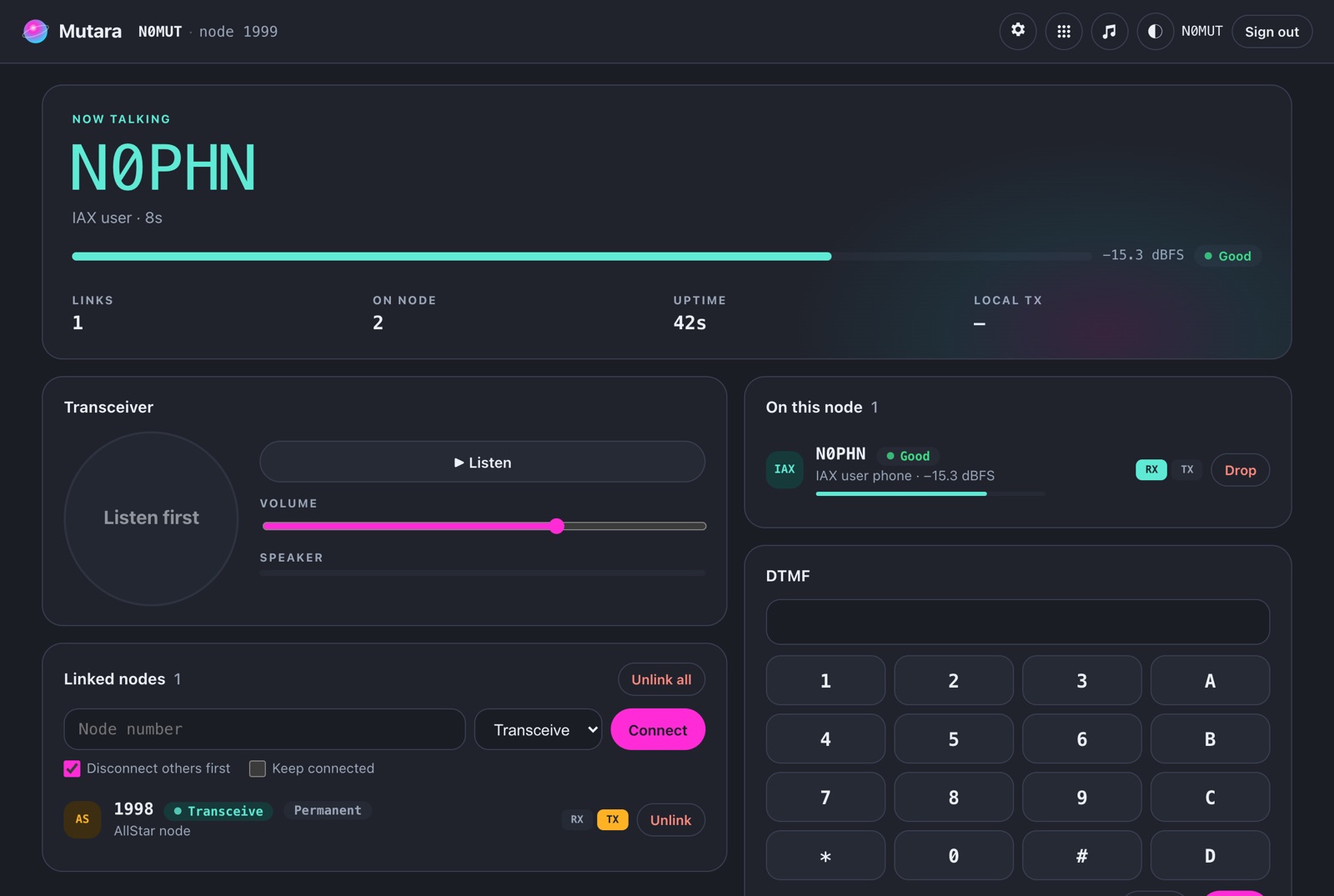
- The top card shows who talks now, their level and the audio band, for example audio to 8 kHz. It also shows the number of links and users, the uptime, the local transmitter and the Encoder level of the listener audio. Read Read the Encoder stat.
- Recorded clips and Last heard show the recent talkers of the node.
- Activity is the log of the node. The buttons All, Talk, Links, Commands and System filter it.
- Transceiver has the Listen button, the volume, the voice boost and the talk button. For an account that can only listen, this card is named Listen.
- Linked nodes shows the links and the nodes behind them. Use it to connect and disconnect nodes.
- On this node shows the radio and the users that are connected now.
With more than one module, the module bar shows below the top bar. Read Change to a different module.
What you can do depends on the rights of your account on each node: for example listen, talk, link, send DTMF, chat, and play or save clips. The admin sets them for each group and account. An admin can do all, and sees Settings. A user with Manage on a node sees the settings of that node.
Sign in and sign out #
- Click Sign in at the top of the dashboard.
- Type your user name and password.
- Click Sign in.
Result: Your callsign shows at the top. A sign-in stays for 7 days, also when the node restarts or upgrades.
To sign out, click Sign out at the top.
If the sign-in fails, the form shows the reason under the password. After 10 failed sign-ins from one address, the node refuses sign-ins from that address for 10 minutes.
On a public dashboard, a visitor who is not signed in sees the callsign of each account, not its user name. An account without a callsign shows as "user".
Listen #
- In Transceiver, click Listen.
- Set the Volume slider.
Result: You hear the node. Click Listen again to stop.
Click Listen one time only. When you change to a different module in the module bar, you continue to listen on the new module. When you click All nodes, you continue to listen to the same module. Read Change to a different module.
Over https://, the band on a node follows who talks: to 6 kHz for the radio (the default receive band), to 4 kHz for AllStar links and the digital modes, and to 8 kHz for browsers, apps and announcements. In a room you hear audio to 12 kHz. Over http:// you hear narrowband audio, to 4 kHz. While someone talks, the top card shows the band, for example audio to 8 kHz.
Turn on Make quiet and loud stations the same level to level the audio in this browser only.
Set Voice boost to make the voices louder in this browser, from 0 to +20 dB. The default is +10 dB. Use it when the node sounds quiet next to music or other apps. A limiter stops loud sounds from clipping, and 0 dB changes nothing. Voice boost applies to live audio, the scan and clips. Each browser keeps its own value. It does not change what the node or other users hear.
A node limits how many people listen at one time. When all listener slots are in use, you wait in line. The Listen button changes to Leave line (on a phone, it shows In line and your number), and a bar at the bottom of the page tells your position. The audio starts by itself when a slot is free. Click Leave line to stop waiting. Signed-in users go before visitors. A visitor can get a warning that a member needs the slot; the audio then stops after 10 seconds. Read Listener slots.
Talk #
You can talk if your account may talk on the node. Open the dashboard with https://, because browsers need HTTPS for the microphone.
- Click Listen.
- Make sure that On the air is selected.
- Hold the talk button, or hold the space bar.
- Speak.
- Release the button to stop.
Result: The node, its radio and its links hear you. The audio is full duplex: you hear the node while you talk.
To talk without holding the button, turn on Toggle PTT under Mic and audio. Then click one time to start and one time to stop.
Note: The node stops a browser that talks for more than 90 seconds. An admin can change this limit. A Network only badge means that your audio goes to the links but not to the local radio.
Read the audio levels #
The dashboard shows the level of each talker in dBFS, with a reading: Too quiet, Low, Good, High or Too loud. The activity log shows the average level of each transmission.
- Open Mic and audio.
- Click Check mic.
- Speak as you do on the air.
- Set Mic gain until the reading is good. Or turn on Auto level (AGC).
A good average is from −32 to −21 dBFS. The best level is near −25 dBFS.
Play recorded clips #
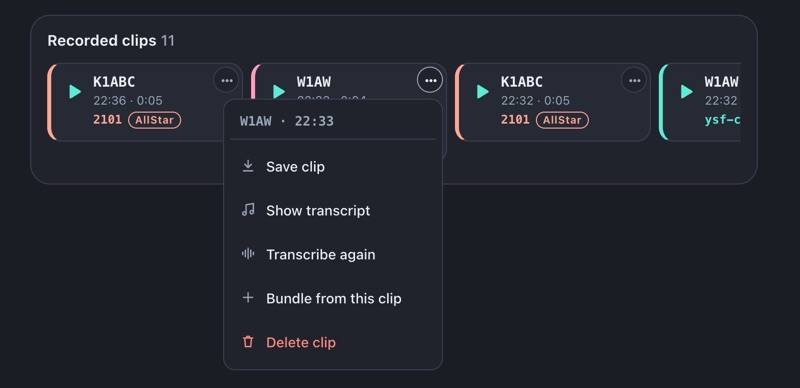
If an admin turned on recorded clips, the Recorded clips strip shows the newest clips first.
- Click a clip to play it.
- Click it again to pause.
- Click Back to live to hear the node again.
The More button of a clip has Save clip, and Share clip on a device that can share files. Both give an M4A file. They show only when you may save the clips of the node. Admins and users who manage the node also see Delete clip.
The More button can also have these items:
- Show transcript, when the clip has a transcript. Such a clip has the mark Text.
- Transcribe or Transcribe again, when the voice server has speech to text and you may make bundles. While the voice server works, the clip has the mark Transcribing.
- Bundle from this clip, when you may make bundles. It joins this clip and the clips after it into one recording.
The Bundles button in Recorded clips opens the bundles of the node. Read Bundles and transcripts.
The dashboard of a module shows the clips of that module only. The All nodes page and the scan view show the clips of all your modules, each with its module ID and type. Read Find the clips that you missed.
Use the chat and a room #
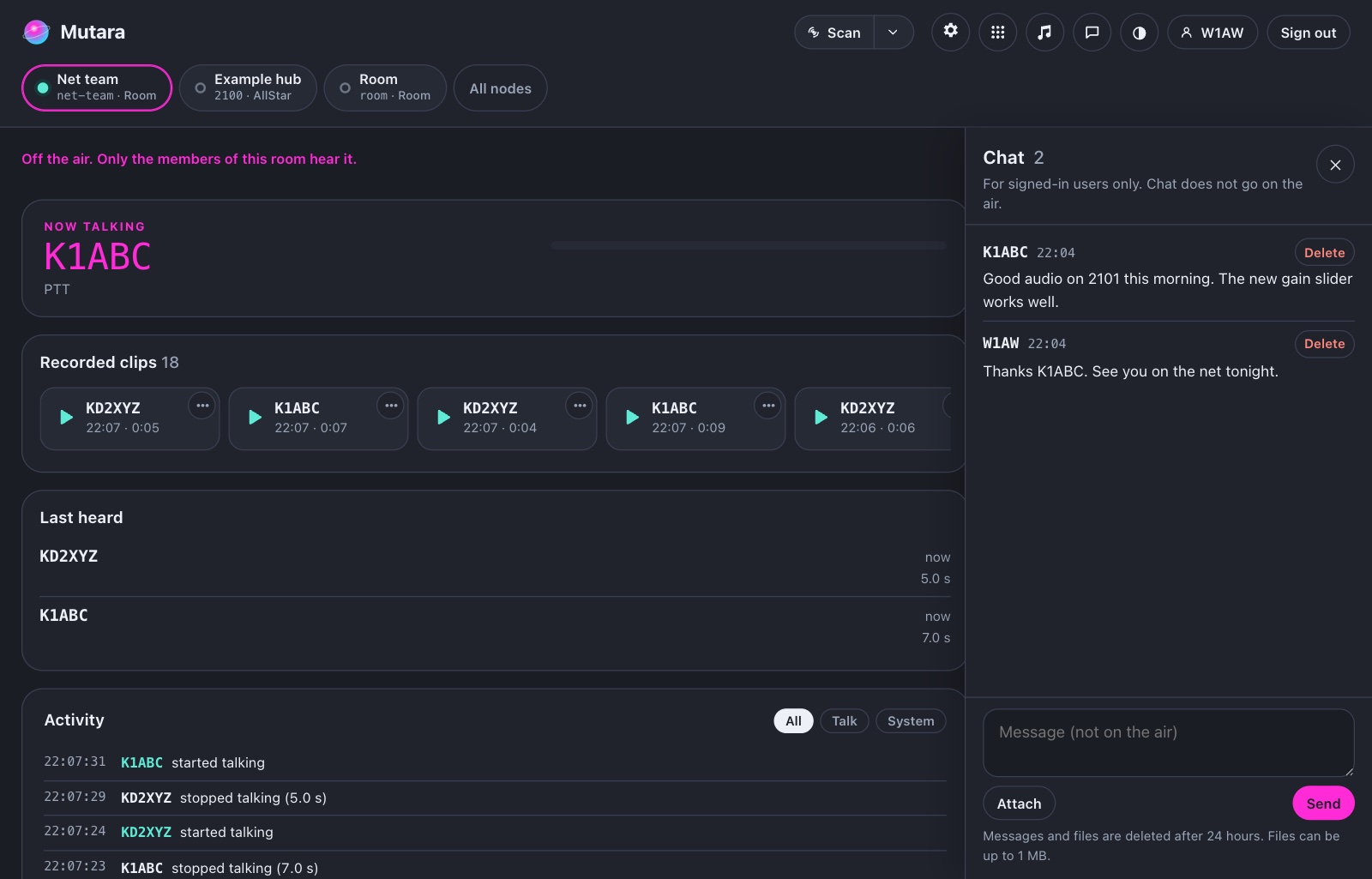
A room is a push-to-talk room for the users of the install. A room is never on the air: the nodes, the radio and the links do not hear it. Only the members of the room hear you. An admin adds rooms. Read Rooms.
- In the module bar, click the room. A room has the pill Room.
- Click Listen. You are now a member of the room. The Members card shows who is in the room, who talks and who has open mic. If you listen already, you are a member when the room opens.
- Hold the talk button to speak in the room. Or turn on Open mic.
Caution: With open mic, use headphones. If you do not, the other users hear an echo.
When a room lets visitors listen, each member sees Visitors can hear this room. When the room is full, you cannot join. Try again later.
The room can stop your talk:
- Stop. A manager stopped your talk. You can talk again after 10 seconds.
- Interrupt. A manager holds the room. You can talk again when the manager stops.
- Talk threshold. You talked for longer than the limit of the room, for example 3 minutes. You can talk again after 10 seconds.
- Open mic idle. Open mic turns off when you do not speak for some time, for example 30 minutes. Turn it on again.
The talk button shows the time until you can talk again.
A user who manages the room has more controls:
- Interrupt, next to the talk button. Hold it to talk, or press it two times to keep it on. Press it again to let go. All the other members stop and hear only you. Your clip has the mark Interrupt.
- Stop, on each member who talks or has open mic. The member cannot talk for 10 seconds, on any connection.
- Remove, on each member. The member cannot join the room again for 10 minutes.
To open the chat, click the chat button at the top. The chat is for text and small files. It does not go on the air. The node deletes messages and files after 24 hours, unless an admin changes this time.
Scan all your modules #
With more than one module in one install, the module bar shows below the top bar. Click a module to open its dashboard. Read Change to a different module.
To hear all your modules on one connection, click Scan in the top bar. The node plays the module that is active. You can set a priority for each module, skip a module, talk back and find the clips that you missed. Read Scan.
Change the theme #
The dashboard has a light theme and a dark theme. Click the theme button in the top bar to change the theme. Each click goes to the next theme: System, Light, Dark. System uses the setting of your computer or phone. On a phone, open the More menu and tap Theme.
When you are signed in, the node keeps your theme with your account. The theme is then the same on each computer and phone where you sign in. When you are not signed in, only this browser keeps your theme.
The dashboard on a phone #
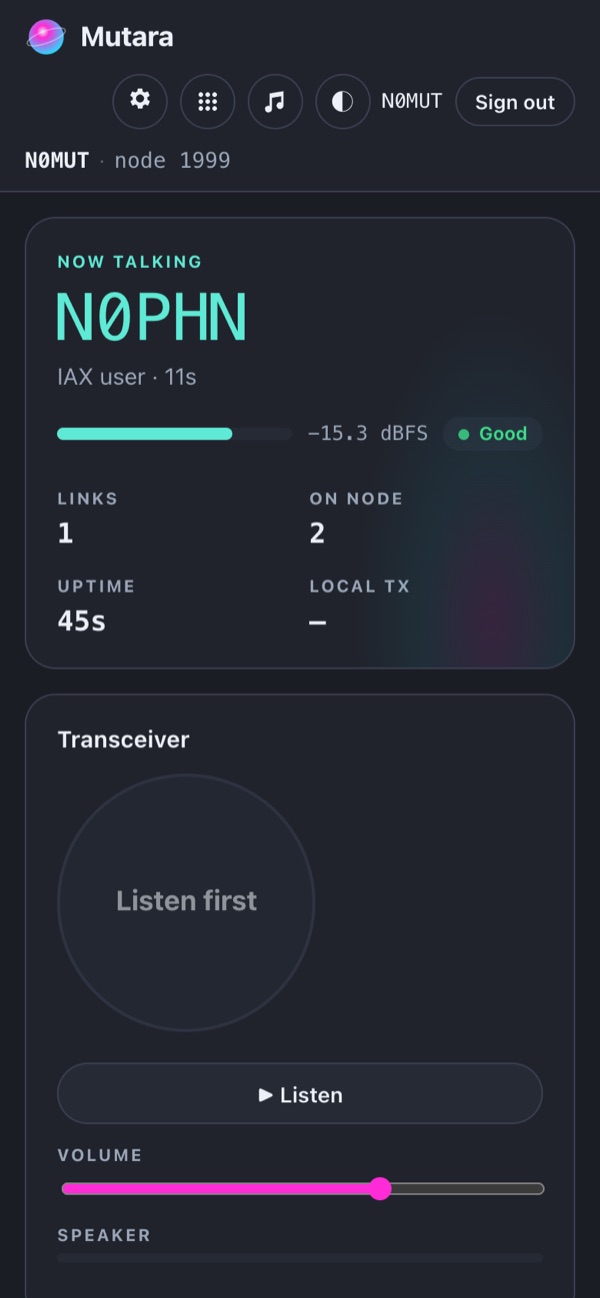
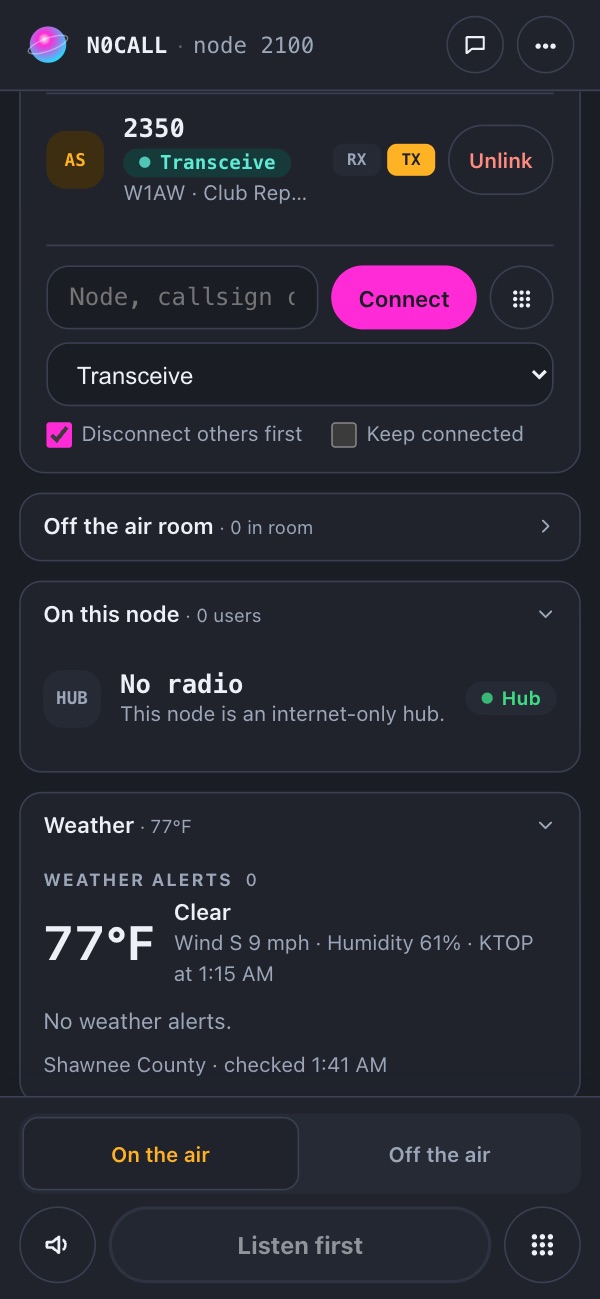
The dashboard works in the browser of a phone. It uses one column. Tap Listen to hear the node, and hold the talk button to talk.