Updates, backup and health
Mutara looks for new releases and upgrades itself safely. This page tells you how to upgrade, keep a backup and examine the health of the node.
Upgrade Mutara #
The node looks for a new release every 6 hours. When there is one, the dashboard shows a bar with Upgrade now.
- Find a time when nobody uses the node.
- Click Upgrade now.
- Read the message, then click Install upgrade.
Result: The node installs the release and restarts. The links drop for a few seconds. Signed-in users stay signed in.
If you do not upgrade, the node upgrades itself four days after the first notice, at a quiet time.
To look for a release now, open Settings, click Software and backup, then click Check for updates.
Note: Each release has a signature. The node installs a release only if the signature is correct. If the new release does not start, the node puts the old release back and the dashboard shows the failed upgrade.
Restart Mutara #
Use a restart when something does not work as it should.
- In Settings, under Maintenance, click Software and backup.
- Click Restart Mutara.
- Click Restart Mutara again to confirm.
Result: Mutara restarts with the saved settings. The links drop for a few seconds, then connect again.
Back up the settings #
- On the Software and backup page, click Download backup.
- Keep the file in a safe place.
Result: You have one file with every setting, also the tones, the commands and the schedule.
Caution: The backup file holds your node password and the other secrets of the node. Keep it private.
Restore a backup
- On the Software and backup page, under Restore, select the backup file.
- Click Restore.
- Click Restore backup to confirm.
Result: Every setting changes to the settings in the file, and Mutara restarts. Mutara keeps a copy of the old settings on the node.
Get diagnostics for a problem report #
- On the Software and backup page, click Download diagnostics.
- Attach the file to your problem report. Write what happened and the time.
The file has the version, the status, the settings without passwords, and the recent logs.
Read the Health page #
In Settings, under Maintenance, click Health. The values refresh every 10 seconds.
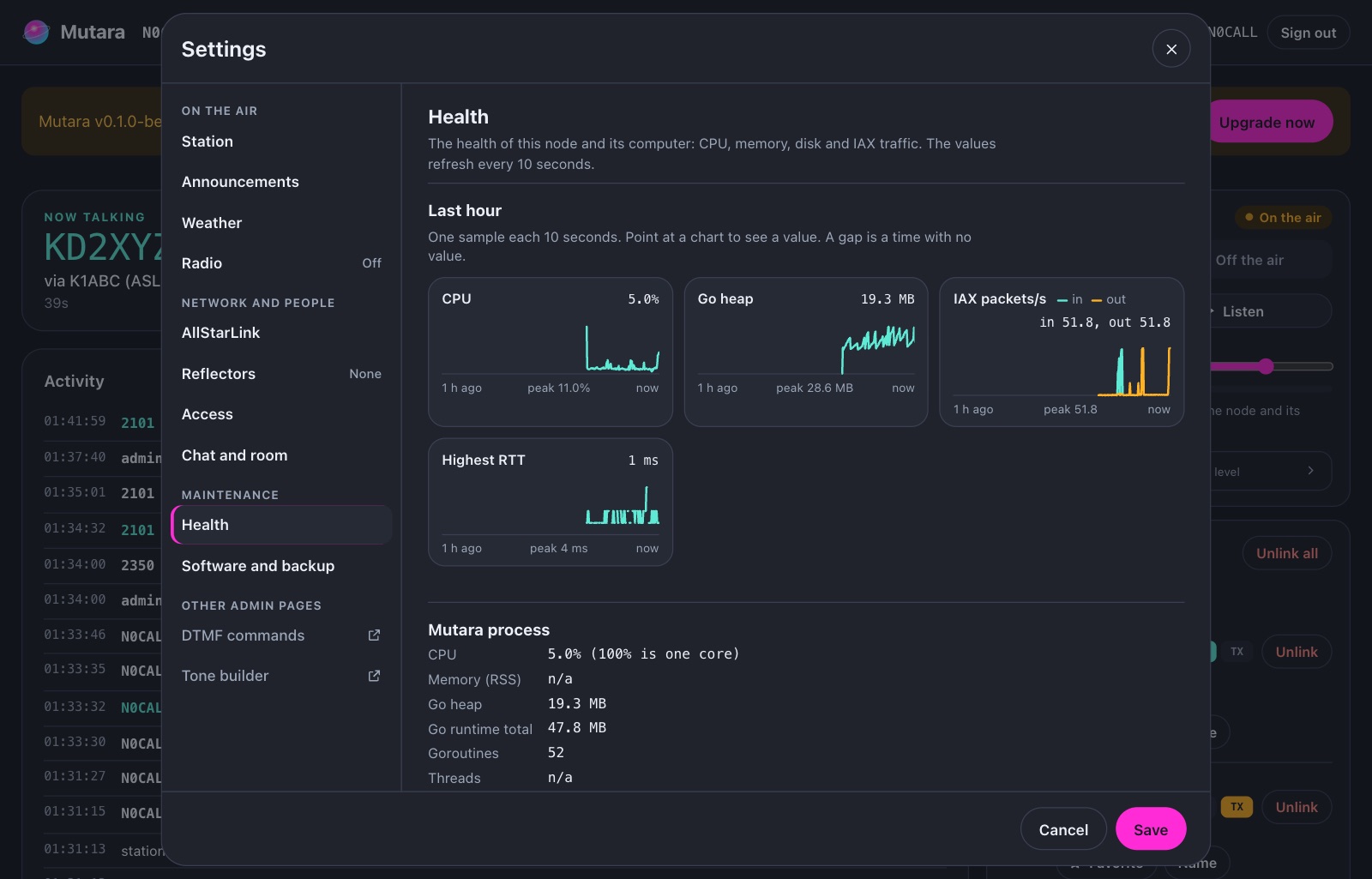
The Health page shows:
- The CPU, the memory and the disk of the computer and of Mutara.
- The IAX traffic and the round-trip time (RTT) of the calls.
- The registration, the addresses of the node and the certificate fingerprint.
- The browsers that listen now, and the voice server.
- A table of the calls, with the packets that were resent or dropped.
A value that is not there yet, for example the round trip with no link, shows as a dash. A value that this computer cannot give shows Not available on this system.