Settings and accounts
Admins set up the node in Settings. You do not have to edit files. This page tells you where each setting is and how to save it.
Open Settings #
- Sign in as an admin.
- Click the gear button at the top of the dashboard.
Result: Settings opens. The pages are in groups.
| Group | Pages |
|---|---|
| On the air | Station, Announcements, Weather, Radio |
| Network and people | AllStarLink, Transcoder, Access, Chat, Recorded clips |
| Install | Modules |
| Maintenance | Health, Software and backup |
Settings opens for the module of the page. A page marked All nodes is for every module of the install. A Reflectors page shows under Network and people only when the configuration file has OpusRef reflector bridges; this feature is on hold. On a YSF module, Settings has the page YSF reflector under Digital module, then Transcoder, Access, Recorded clips, Modules, Health and Software and backup. On a DMR module, the page under Digital module is DMR talkgroup. On an M17 module, it is M17 reflector. On a room, Settings has the group Room with the pages Room, Access and Recorded clips, then Accounts and groups, Modules, Health and Software and backup.
The settings that few people change are under More settings at the end of each page. The DTMF commands and Tone builder pages open in a new tab.
Save a change #
- Change the setting.
- Read the footer. It shows the number of changes and what saving does.
- Click Save or Save and restart.
Result: Many settings apply at once. Other settings restart Mutara, and the links drop for a few seconds. You stay signed in.
To drop your changes, click Cancel.
Add accounts #
Each person who uses the dashboard or the app has an account. The accounts go in groups. Each node says what each group and each account may do on it.
- In Settings, under Network and people, click Accounts and groups.
- Under Accounts, click Add account.
- Type the user name, the password and the callsign.
- Under Groups, select the groups of the account, or click New group to make one, for example
club. - Click the save button.
Result: The user can sign in, and has the rights of the groups on each node.
Three groups are always there. Everyone is each visitor, also without a sign-in. Signed-in accounts is each account. Admins may do everything on every node and change all the settings. Keep at least one admin.
Who may do what on a node
- In Settings, under Network and people, click Access. With more than one node, select the node first.
- Under Who may do what on this node, turn on Public dashboard to let anyone see the node, and Public listening to let anyone listen.
- Under Give access to, select a group or an account, then click Add row.
- In its row, select what it may do: View, Listen, Talk, Radio (talk onto the local radio), Link, DTMF, Read and Post in the chat, Play and Save clips, Bundles (make bundles of clips, and transcripts), and Manage (the settings, tones and commands of this node).
- Click the save button.
Result: The change applies at once, also to a user who listens now. A user who may not talk sees no PTT.
- The rights add up: a user has the rights of each of its groups and its own row. No row takes a right away.
- A user with Talk but not Radio talks to the links only.
- A node with no rows of its own uses the defaults. With more than one node, set them under Defaults for new nodes on the Accounts and groups page. To go back to the defaults, click Use the defaults instead.
- A visitor who is not signed in sees the callsign of each account, not its user name. An account without a callsign shows as "user".
A configuration from an older version, with a role (listener, operator or admin), Can talk and Talk onto local radio on each account, still works with the same rights. Mutara shows it as groups and rows. The next start, or the first save, writes it in the new form. Read The old keys.
Listener slots
Listener slots limit how many browsers and apps listen at one time, on all the nodes and the scan of the install. Admins are not counted.
- In Settings, under Network and people, click Access.
- Under Listener slots, set Most listeners (1 to 256, default 64). This number is for signed-in users and visitors together.
- Set Most public listeners (default 16). It is the most visitors who listen at one time, and it is counted in Most listeners. Set 0 to stop visitors from listening.
- Click the save button.
Result: The change applies at once. Nobody who listens now is cut off. New listeners wait until the count is under the new number.
- When all slots are in use and a signed-in user wants to listen, a visitor gives the slot. The visitor who heard audio least recently gets a warning, and the audio stops 10 seconds later.
- When no slot is free, the listener waits in line. Signed-in users go before visitors. The dashboard and the apps show the position, and the audio starts by itself when a slot is free.
- The line holds 64 listeners. A listener waits at most 30 minutes. A dashboard tab that is hidden for 5 minutes leaves the line.
- The Health page shows the slots in use, the public slots, the line, and the bumps since the start.
Listener audio
The node encodes the audio for browsers and apps with Opus. The encoder level sets how much CPU this work uses. Auto, the default, finds the level that the board can keep.
- In Settings, under Network and people, click Access.
- Under Listener audio, set Listener encoder level: Auto, or a level from 4: full to 0: least CPU, no error correction.
- Click the save button.
Result: The change applies at once, with no restart. A change to Auto runs the start test again. The dashboard shows the level now as Encoder.
Each lower level uses about half the CPU of the level above, with a small loss of sound quality. The band and the bit rate do not change. Set a fixed level only when listeners hear stutter on a slow board, or to keep level 4 on a fast computer. Read Listener encoder levels.
Accounts for IAX apps
DVSwitch Mobile, iaxRpt and softphones sign in with an IAX user. Add one under IAX users on the Access page. By default, an IAX user can talk but cannot send DTMF commands. Turn on Allow DTMF commands only for a user that you trust.
Use HTTPS #
The browser needs HTTPS to use the microphone. Select the certificate on the Software and backup page.
| Choice | When to use it |
|---|---|
| Self-signed (built in) | On your home network. The browser shows a warning one time. |
| Let's Encrypt | The node has a domain name, and TCP port 80 on the internet goes to the node. Let's Encrypt checks the domain on port 80. The certificate gives no warning. |
| Certificate files | You have a certificate and key from a different source. |
Change the DTMF commands #
The DTMF commands page lists each command with its digits. For each command, you select who can use it: Radio (your local radio), Links (linked nodes) and Users (IAX apps and the dashboard).
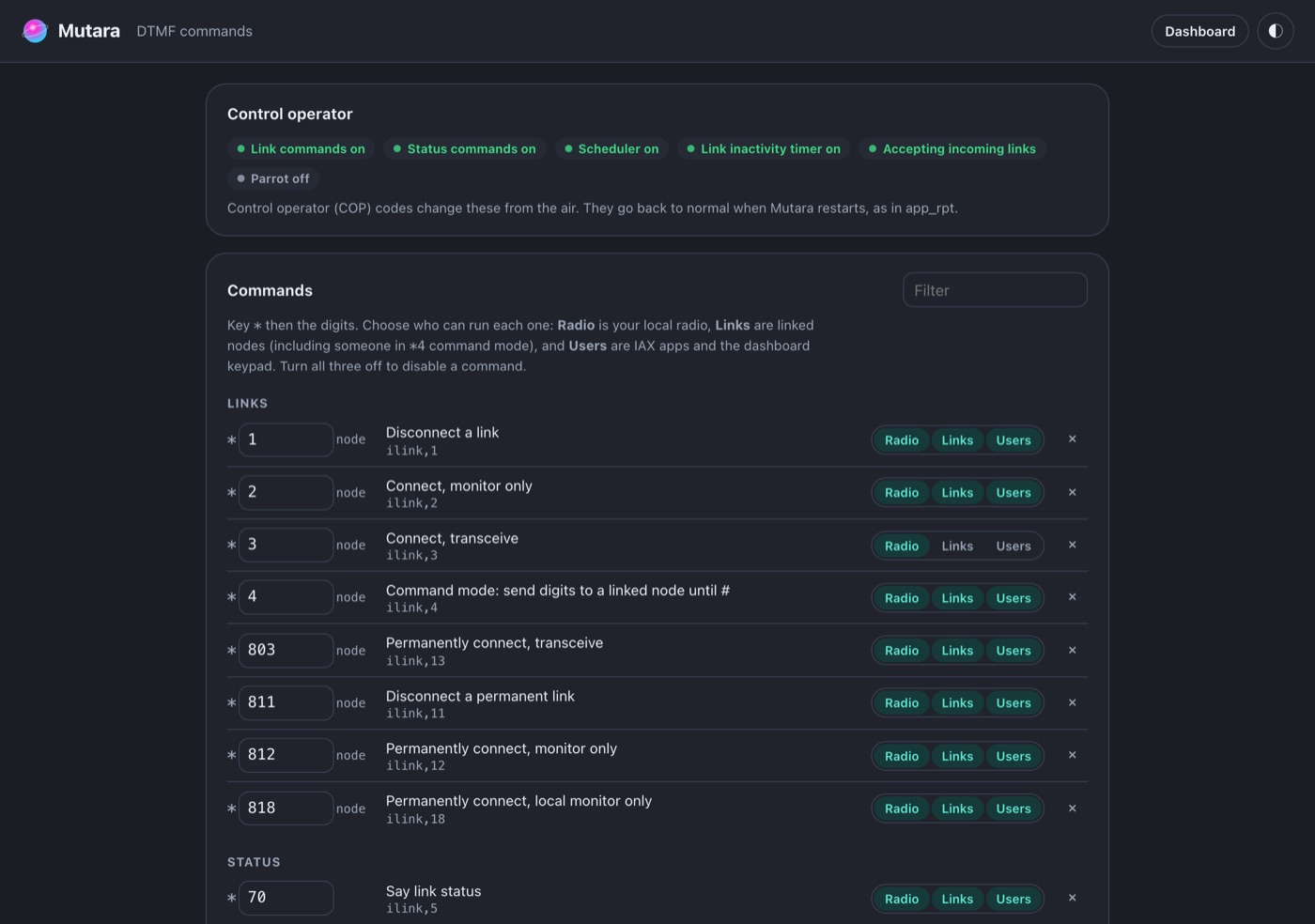
- In Settings, click DTMF commands.
- Change the digits or the access of a command.
- To add a command, use Add a command.
- Click Save.
The Control operator switches change some functions until the next restart, as the control operator codes do in app_rpt. The Schedule part runs commands at set times.
Make your own tones #
The Tone builder page sets the courtesy tone and the other tones. You can start from a preset in the library, or paste a tone line from an app_rpt rpt.conf.
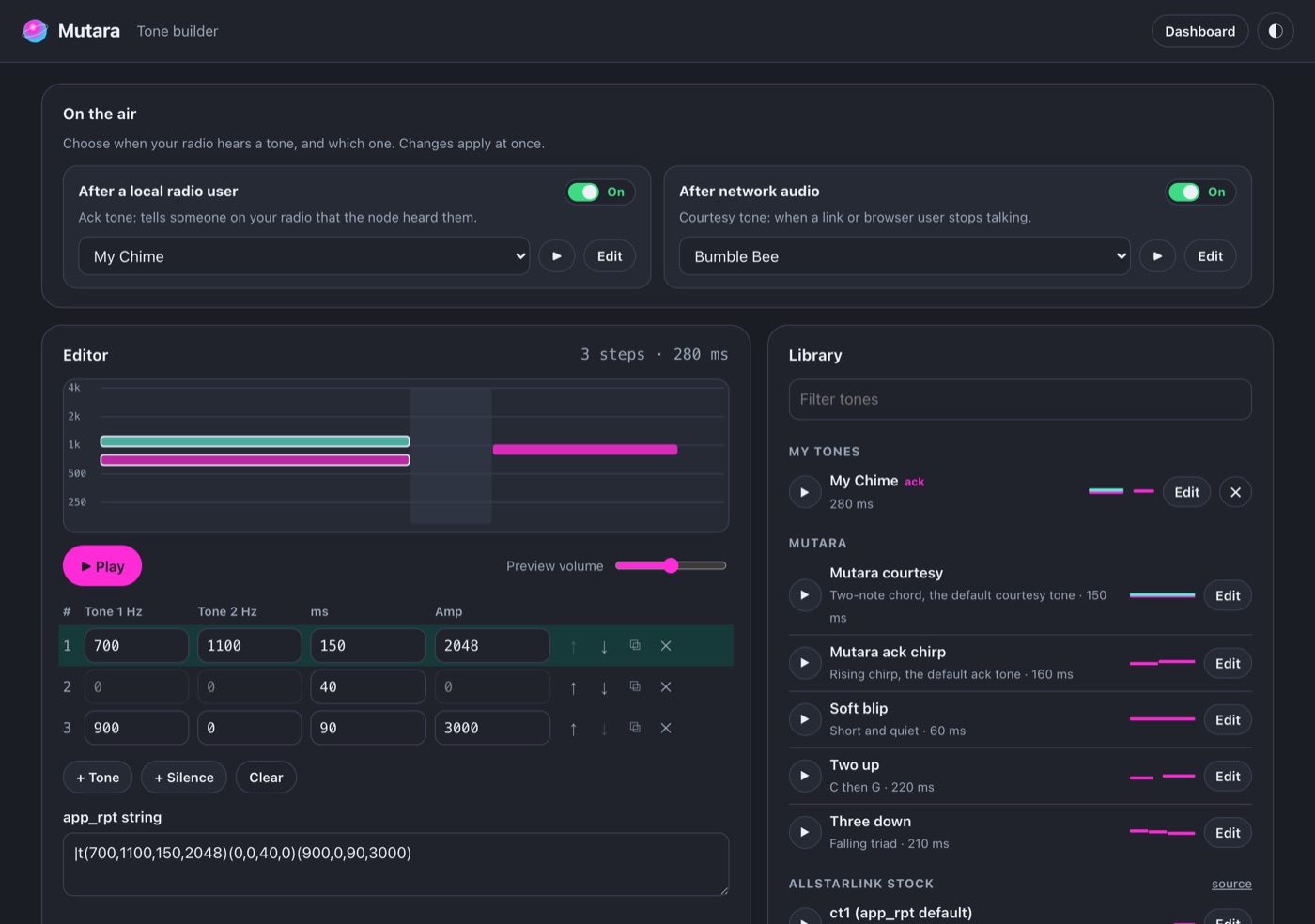
- In Settings, click Tone builder.
- Select a tone in the library, or add steps in the editor.
- Click Play to hear it in the browser, or Play on radio.
- Click Save to my tones.
- Under On the air, select when the radio plays the tone.
Result: The changes apply at once.
Chat and recorded clips #
- On the Chat page, turn the chat on or off. Set how long the node keeps messages, from 10 minutes to 30 days. Who may read and post is on the Access page of each node.
- On the Recorded clips page, turn on Record talkers. Set the recording hours, the shortest clip, the days to keep the clips and the storage limit. The section Bundles has Bundles, Longest keep time, Bundle storage limit (MB) and Transcript hint. Read Settings and limits.
- On the Accounts and groups page, Public links to bundles lets the owner of a bundle make a link for people with no account. It is off by default. Read Share a bundle with a link.
Modules and the transcoder #
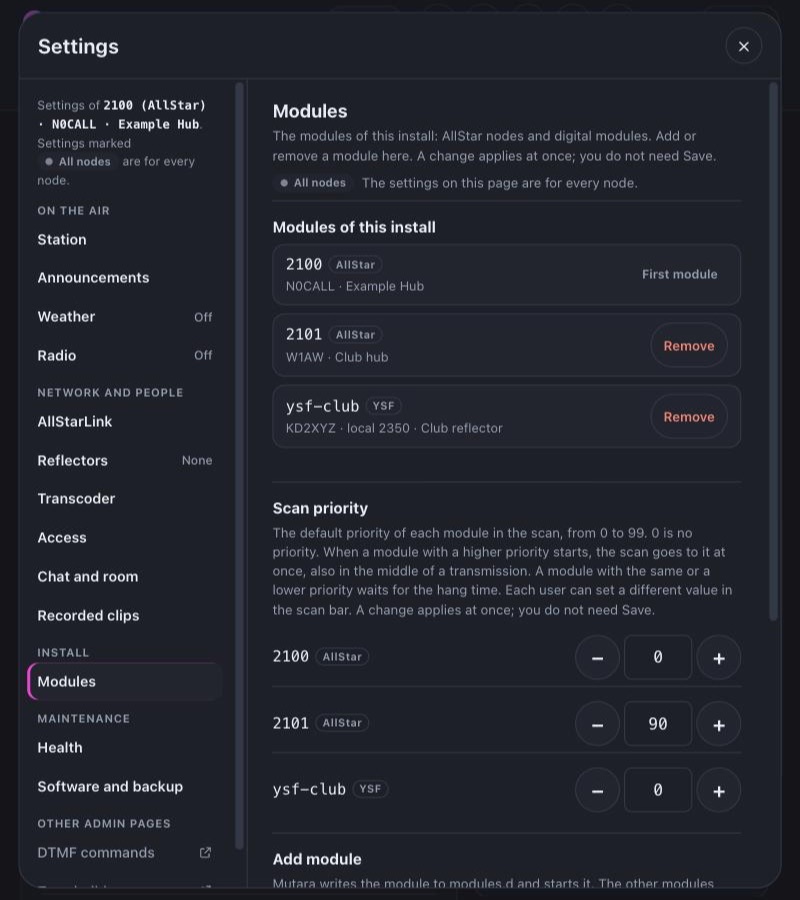
The Modules page is for the whole install. It has three parts:
- Modules of this install, with a Remove button for each module except the first.
- Scan priority: a link that opens the Scan priorities panel. There you set the default priority of each module in the scan, from 0 to 99. Read Set the default priority.
- Add module, with a card for each type of module. Read Add a module.
A change on this page applies at once. You do not need Save.
A YSF, DMR or M17 module needs a transcoder server. On the Transcoder page, type the Server address and the Key that the operator of the server gives you. To run your own server, read the mutara-radio/tcdpool project on GitHub. A change to these restarts all of Mutara.
All the YSF, DMR and M17 modules of the install share one pool of transcoder sessions. On the same page, Warm sessions sets the free sessions that stay open, so that a new call starts at once (default 2). Most sessions sets the most sessions that the pool opens (0 uses the limit of your key). A change to these two applies at once. Health has a Transcoder pool panel with the sessions that are open, in use and free, the peaks, the calls with no transcoder and the last events of the pool. Health also shows the status of the transcoder server.
The YSF reflector page of a YSF module has the reflector, the local number, the link to an AllStar node and the audio levels. Read Audio levels.
The DMR talkgroup page of a DMR module has the master, the hotspot password, the DMR ID, the ESSID, the timeslot, the talkgroup, the local number, the link to an AllStar node and the audio levels. The password shows only as set. Leave it blank to keep it. A change to the talkgroup restarts only that module. Also change the static talkgroup at your network. On BrandMeister, do this in SelfCare. Read Make the talkgroup static first. Under Talker names, Download the DMR ID list shows the callsign and the first name of each DMR talker. It is off by default, and it is for all DMR modules.
The Room page of a room has:
- Room name.
- Who may listen: signed-in users, or signed-in users and visitors. When visitors can listen, each member sees Visitors can hear this room.
- Who may talk: users who can talk on a node, or only the rows on the Access page of the room.
- Most members: the most people in the room at one time, from 2 to 256 (default 20). Users who manage the room are not counted.
- Open mic, and Open mic turns off after (default 30 minutes).
- Talk threshold: the room stops a transmission that is longer than this (default 3 minutes). The member then waits 10 seconds. The browser talk limit also applies to PTT; the shorter one wins.
- Transcripts (on by default) and Public links to bundles (off by default), under Bundles and transcripts. When Transcripts is on, the room audio goes to the voice server.
- In the default scan list. It is off for a room.
Read Rooms. The room records each talker by default. A change on the Room page applies at once; nobody in the room is cut off.
The M17 reflector page of an M17 module has the reflector host, the port, the reflector module, the link callsign, Talk on the reflector, the local number, the link to an AllStar node and the audio levels. A change to the reflector restarts only that module. Read Use an M17 module.