Link to other nodes
A link joins your node with another AllStarLink node. Then the people on both nodes hear each other.
Link a node #
You must be an operator or an admin.
- In the Linked nodes card, type the node number in the node box, for example 2200.
- Select the mode: Transceive, Monitor or Local monitor.
- To drop the other links first, select Unlink others first.
- To make the link permanent, select Keep linked.
- Click Link.
Result: The node shows under Linked nodes with its mode. The node says the link on the air.
If the activity log says "already connected", the node is already in your network. Read Links and loops.
The link modes
| Mode | What it does |
|---|---|
| Transceive | Audio goes in the two directions. The usual mode. |
| Monitor | You hear the other node. The other node does not hear your node. |
| Local monitor | You hear the other node on your local radio only. Your other links do not get its audio. |
Find a node by callsign or name #
If an admin turned on Download the node list, you can search for a node.
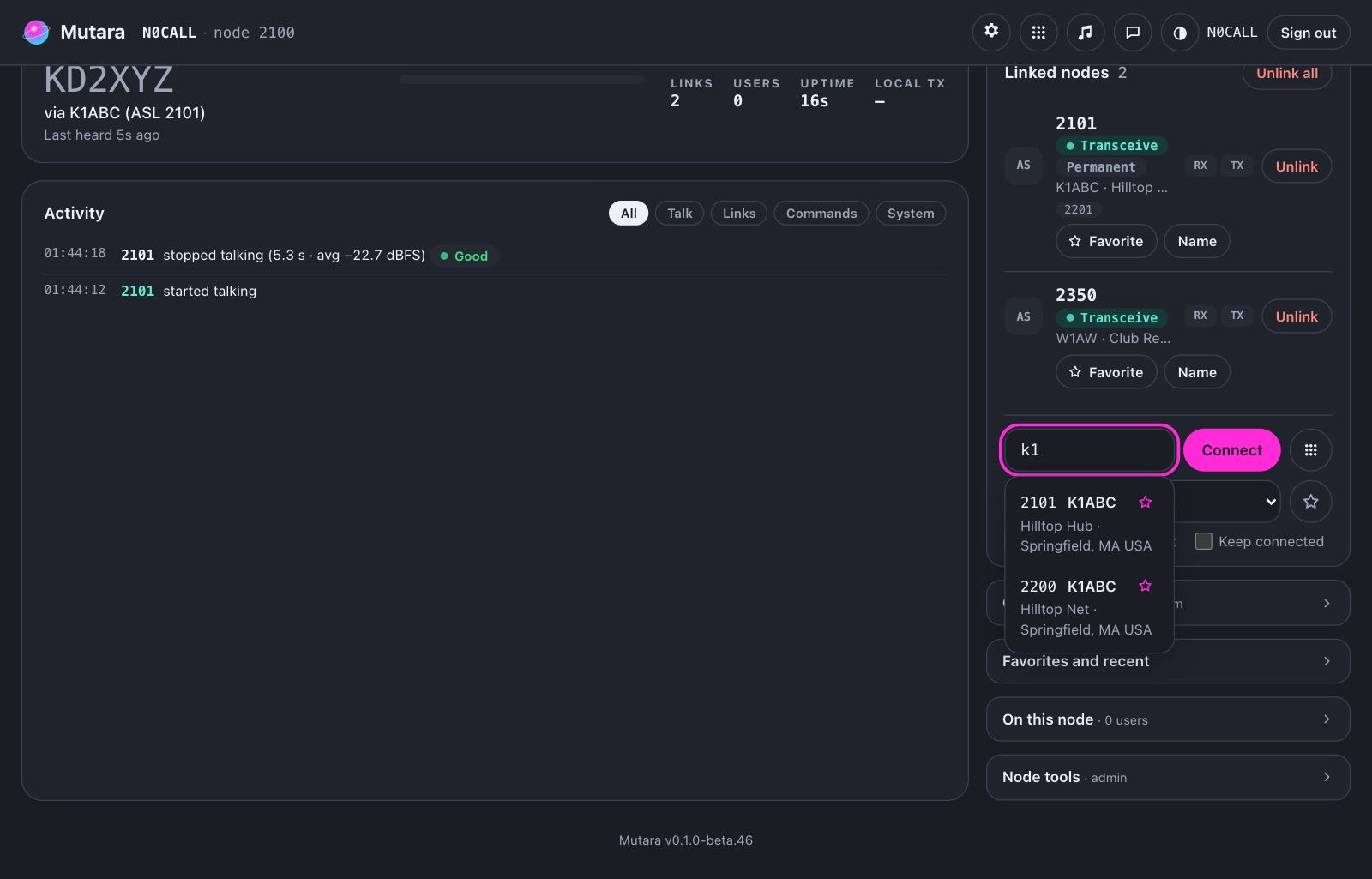
- Type two or more letters in the node box, for example "k1".
- Use the arrow keys and Enter, or click a node in the list.
Unlink a node #
- Find the node under Linked nodes.
- Click Unlink.
To drop all links, click Unlink all.
Note: If you unlink a permanent link on the dashboard, the node removes it from the permanent links.
Permanent links #
The node links a permanent link again when it drops, and after a restart. You can make one in three ways:
- On the dashboard, select Keep linked before you click Link.
- In Settings, on the AllStarLink page, click Add permanent link.
- With DTMF, send *813 and the node number, for example *8132200.
A permanent link stops when the other node disconnects it on purpose, for example with *1 there. It connects again after a restart, or after a new *81x or connect command.
See the nodes behind a link #
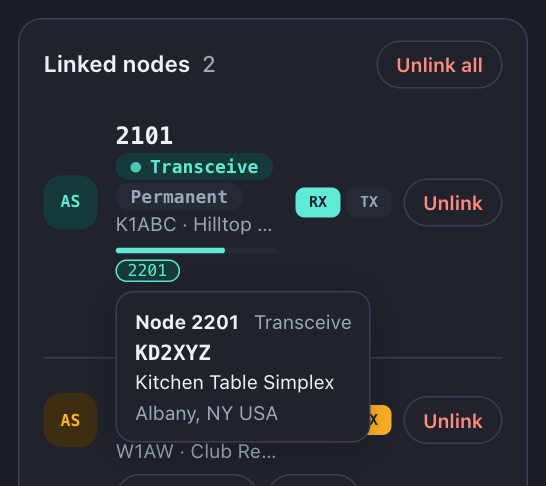
Under each link, the dashboard shows the nodes behind it. Point to a node, or tap it, to see its mode, callsign, name and location. When a station talks behind your link, the top card shows the station and the link. An example is "KD2XYZ, via K1ABC (ASL 2101)".
Favorites and recent nodes #
A favorite connects a node with one click, in its own mode. The dashboard also shows the last nodes that linked, in and out.
- As an admin, click the star button next to a linked node or next to the node box.
- Open Favorites and recent.
- Click a favorite to connect it.
To give a node a name, click Name on the link. The dashboard shows the name. The voice server says it.
DTMF commands #
Mutara uses the stock app_rpt DTMF codes. Send them from the radio, from an IAX app, or from the DTMF keypad on the dashboard. In the table, n is a node number.
| Code | What it does |
|---|---|
| *1n | Disconnect node n. |
| *2n | Connect node n in monitor mode. |
| *3n | Connect node n in transceive mode. |
| *4n | Command mode: your digits go to linked node n until you send #. |
| *5m | Run macro m. |
| *70 | Say the link status. |
| *711 | Station ID, on the local radio only. |
| *712 | Say the time, on the local radio only. |
| *713 | Say the status, on the local radio only. |
| *714 | Say the full status, on the local radio only. |
| *721 | Station ID. |
| *722 | Say the time. |
| *723 | Say the Mutara version. |
| *725 | Say the last user who sent DTMF. |
| *76 | Say the current weather and the weather alerts. |
| *811n | Disconnect a permanent link. |
| *812n | Permanent link, monitor. |
| *813n | Permanent link, transceive. |
| *818n | Permanent link, local monitor. |
An admin can change the codes on the DTMF commands page. Read Settings and accounts.
Send DTMF from the dashboard
- Click the keypad button next to the node box.
- Click the digits, for example * 3 2 2 0 0.
- Click Send.
You can also type on the keyboard: 0 to 9, A to D, * and #. Enter sends. Esc closes the keypad.
The keypad shows the keys A to D only when you click A–D at the top. The keypad keeps this setting in your browser.
Links and loops #
A loop is a chain of links that comes back to the same node. A loop makes echoes and feedback. Mutara refuses a link that makes a loop, as app_rpt does.
Text version of figure 1
- Node 2100 has a link to node 2200.
- Node 2200 has a link to node 2201.
- A user on node 2100 sends *32201.
- Node 2201 is already in the network through node 2200. Mutara refuses the link and says "already connected".
Mutara also refuses a link to its own node number.
Control who links in #
- In Settings, under Network and people, click Access.
- Turn Accept incoming links on or off.
- In Which nodes may link in, select Any node, Allow list only or All but the deny list.
- Type the node numbers in the list, for example "2200, 2201".
- Click the save button.
Caution: As in stock AllStarLink, linked nodes can send DTMF commands to your node. A *1 from a linked node can drop your links. To stop this, turn off Links for a command on the DTMF commands page.