Connect a radio
With a radio, your node is an RF node. Without a radio, it is an internet hub. You can add a radio at any time.
What you need #
- A USB radio interface with a CM108 or CM119 sound chip, or an AIOC. Mutara reads the carrier (COS) and keys the radio (PTT) through the USB interface.
- A radio that connects to the interface.
- Or a radio module on a USB serial port, such as the SR110U or the SA818. Mutara sets its channel.
Note: A node has one radio. With several nodes in one install, only the first node can have a radio.
Use a USB radio interface #
- Connect the USB interface to the node.
- In Settings, under On the air, click Radio.
- Turn on Use a radio.
- In Interface, select your interface. If there is only one, keep the automatic choice.
- In Carrier detect, select how the radio tells the node that it receives a signal.
- Click Save and restart.
Result: The node restarts. On the dashboard, On this node shows the radio.
| Choice | When to use it |
|---|---|
| COS input, active high (most fobs, AIOC) | Most USB interfaces and the AIOC. |
| COS input, active low | An interface that pulls the COS pin low on a signal. |
| VOX (audio level) | An interface with no COS wire. The audio level opens the receiver. |
| Off | No carrier detect. |
If your radio decodes CTCSS on a separate pin, set CTCSS detect too. Then the node hears only signals with the correct tone.
Select the radio mode #
The radio mode tells the node how to use the transmitter. Set it in Settings, on the Station page.
| Radio mode | What it does |
|---|---|
| Simplex, quiet | No courtesy tone and no hang time. |
| Simplex node | Courtesy tone and hang time, like a hotspot. |
| Duplex repeater | The node repeats the local users on the radio. |
Links to other nodes are always full duplex. An admin can also change the radio mode in Node tools on the dashboard, until the next restart.
Set the audio levels #
Good levels make your node easy to hear on the network. Use the Radio levels part of Node tools on the dashboard. You must be an admin.
- On the dashboard, open Node tools.
- Key up on a radio, and speak as you do on the air.
- Read the level of the last transmission in Radio levels.
- If the level is not good, click Set receive gain from last.
- Do the test again.
Result: The average level is from −32 to −21 dBFS, best near −25. The peaks are below −6 dBFS.
The Receive level and Transmit level sliders set the sound card, from 0 to 999. The Receive gain and Transmit gain add digital gain, from −20 to +20 dB. Use the sound card level first.
To level all received audio, turn on Auto level (AGC) on the Radio page. It levels the audio to about −25 dBFS and adds at most 12 dB.
Test with parrot mode
- In Node tools, turn on Parrot mode.
- Key up on your radio and speak for a few seconds.
- Unkey.
- Listen to the node play your audio back on the radio.
- Turn off Parrot mode when you finish.
The activity log shows the average level of each transmission, with a reading such as Good or Too loud.
Set the audio band #
The radio filters work at 48 kHz. A soft low-pass sets the top of the receive audio. A band-pass sets the transmit audio. Listeners on the dashboard and in the apps hear the receive band. AllStar links and the digital modes get 8 kHz audio, as before.
- In Settings, under On the air, click Radio.
- Open More settings.
- Under Filters, select the Receive audio band: To 5 kHz (medium), To 3.4 kHz (narrow) or To 7 kHz (wide).
- Select the Transmit audio band: 300 Hz to 5 kHz or 300 Hz to 3 kHz.
- Click Save and restart.
Result: The node restarts with the new filters.
- The default for both is 5 kHz. Most radios need no change.
- A wider receive band carries more energy from the same signal. If received audio is too loud after an update, lower Receive gain a little.
- A narrower receive band removes more hiss from a weak signal.
- If the transmit deviation or the occupied bandwidth is too high, select 300 Hz to 3 kHz.
Caution: Check the deviation of your transmitter after you change the transmit band or the transmit level.
Use a radio module #
A radio module, such as the SR110U, is a small radio with a USB serial port. Mutara writes the frequency, the tones and the other settings to it.
- Connect the module to the node.
- In Settings, on the Radio page, turn on Use a radio module.
- Click Find module.
- Select the ports to check.
- Click Check chosen ports.
- When the module answers, click Use this port.
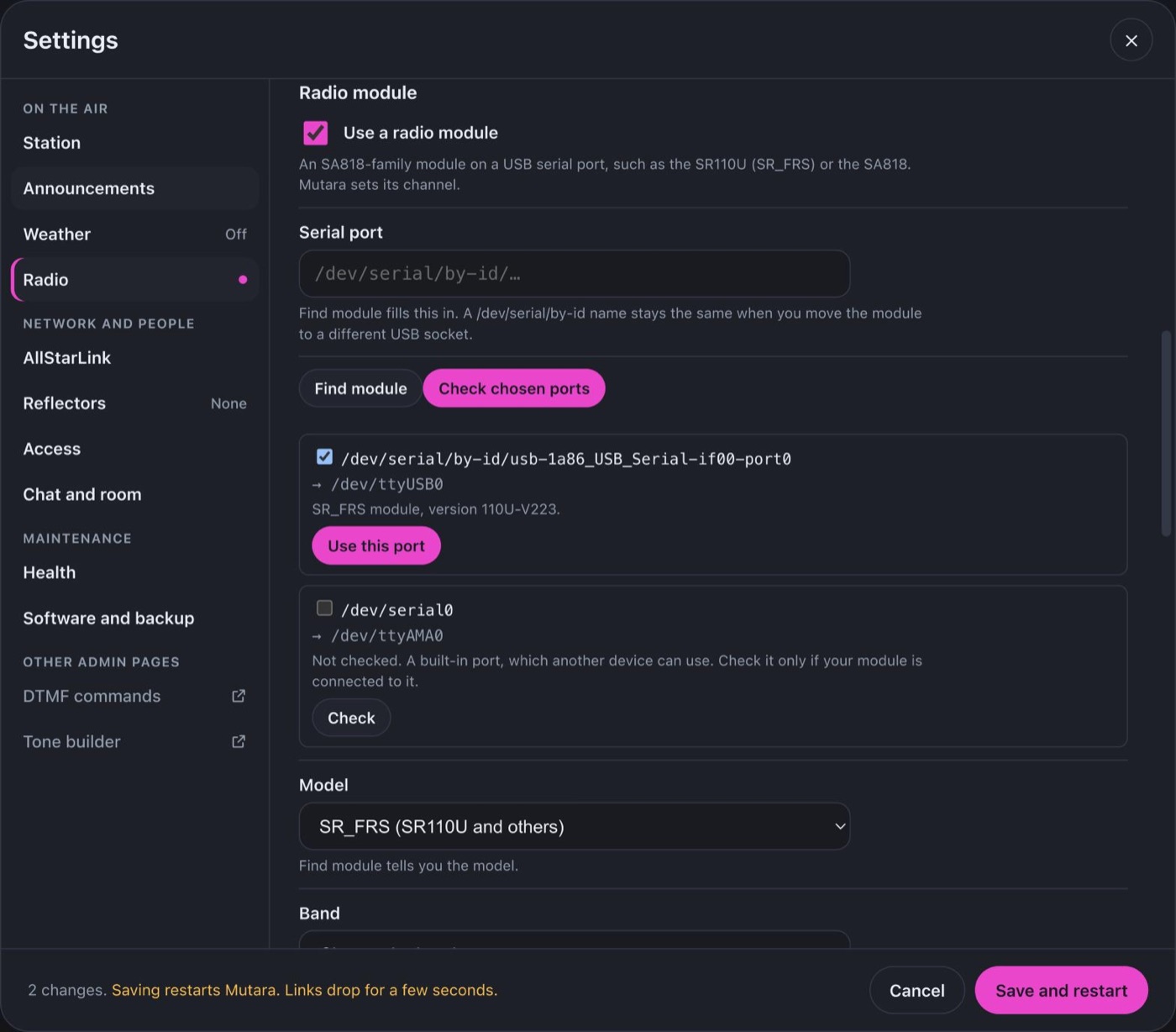
- In Band, select VHF or UHF.
- Type the Receive frequency (MHz), for example 446.0000.
- Keep Transmit frequency (MHz) empty for simplex.
- Set the tones and the channel width.
- Click Write to module.
- Click Save and restart.
Result: Each command shows its result. The module is on the new channel.
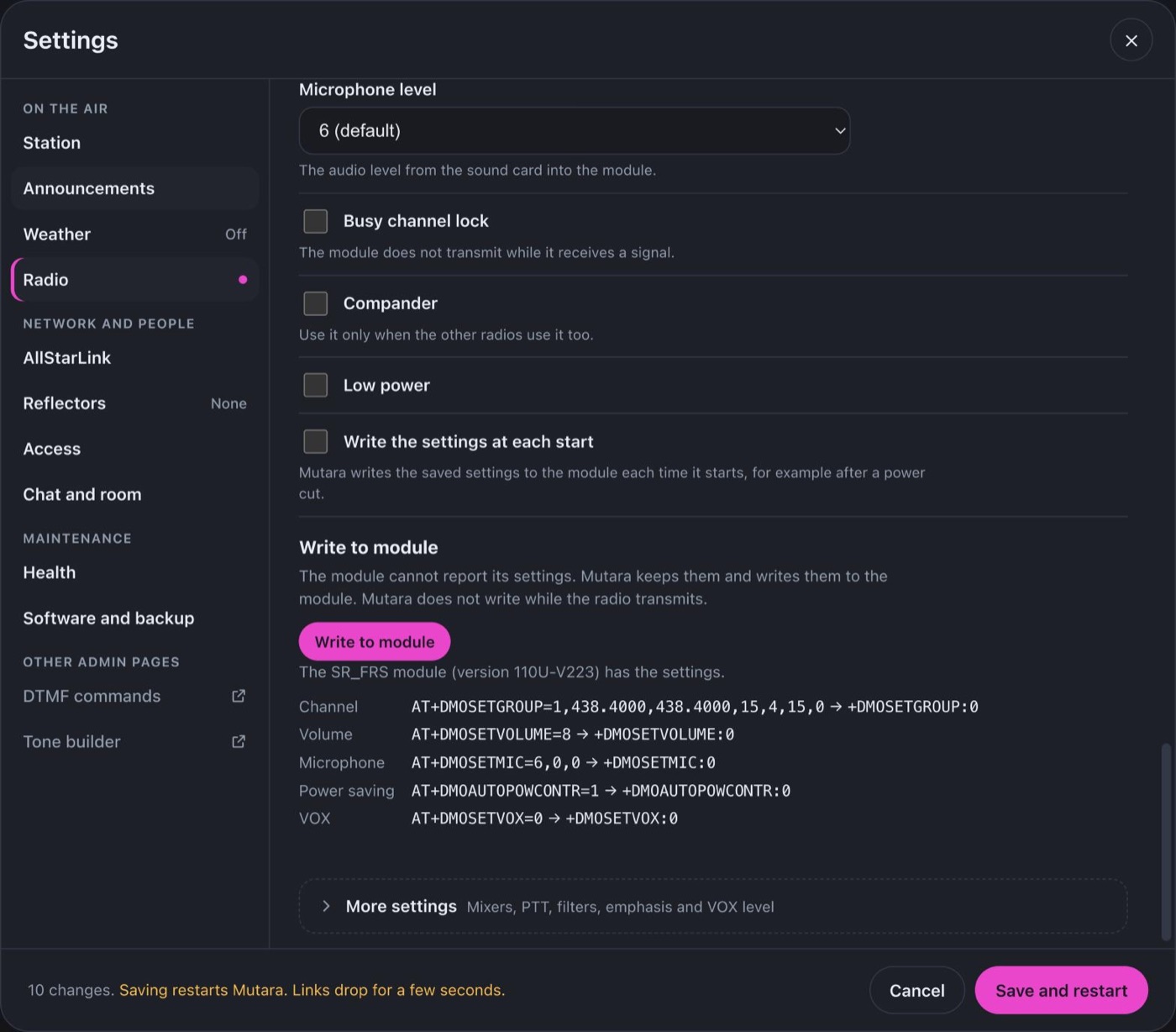
Note: The module cannot report its settings. Mutara keeps them and writes them to the module. Turn on Write the settings at each start if the module loses its settings after a power cut.
Caution: Transmit only on frequencies that your license permits.
Stop the radio audio for a time #
An admin can stop the radio audio and keep the links up. Use it, for example, when the frequency is busy with a net.
- On the dashboard, open Node tools.
- In Radio audio gate, select RX only, TX only or Off.
- Select the time, from 10 minutes to Until I change it.
Result: The dashboard shows the gate. After the time, or after a restart, the node uses its settings again.