Rooms
A room is a push-to-talk room for the users of your install. It is never on the air. Only the members of the room hear you. Use a room for net control, a club team or an event.
What a room is #
- A room is a module of the type Room. It shows in the module bar with the pill Room.
- A room is full duplex. Each member hears all the other talkers. Two members can talk at the same time.
- A room is never on the air. The nodes, the radio and the links do not hear it, and the room does not hear them.
- Nothing links to a room. A room has no node number, no IDs, no courtesy tones and no weather.
- An install can have many rooms. Each room has its own members, chat, clips, access and settings.
Mutara 0.1.0-beta.58 or later has room modules. An older release had one off-the-air room on each node. At the first start, Mutara makes the room module room from it. Read web.room.
Add a room #
You must be an admin.
- In Settings, under Install, click Modules.
- Under Add module, select Room.
- Type the Room ID, for example
net-team. The ID must have one letter or more. - Type the Name, for example Net team.
- Click Add room.
Result: The room shows in the module bar. Signed-in users can listen in the room. Users who can talk on a node can talk there.
To remove a room, click Remove next to it on the Modules page. Mutara keeps its clips and chat in modules/.removed/. Read Add a module.
Join a room and talk #
- In the module bar, click the room.
- Click Listen.
Result: You are a member of the room. The Members card shows who is in the room, who talks and who has open mic.
- Hold the talk button and speak.
- Release the talk button to stop.
To talk without the talk button, turn on Open mic. The room then hears you when you speak. A voice gate sends only speech.
Caution: With open mic, use headphones. If you do not, the other members hear an echo.
- When a room lets visitors listen, each member sees Visitors can hear this room. The note shows also when no visitor listens now, because a visitor can join at any time.
- When the room is full, you cannot join. The page says, for example, "The room is full (20). Try again later."
- The chat of the room is for its members only. Click the chat button at the top.
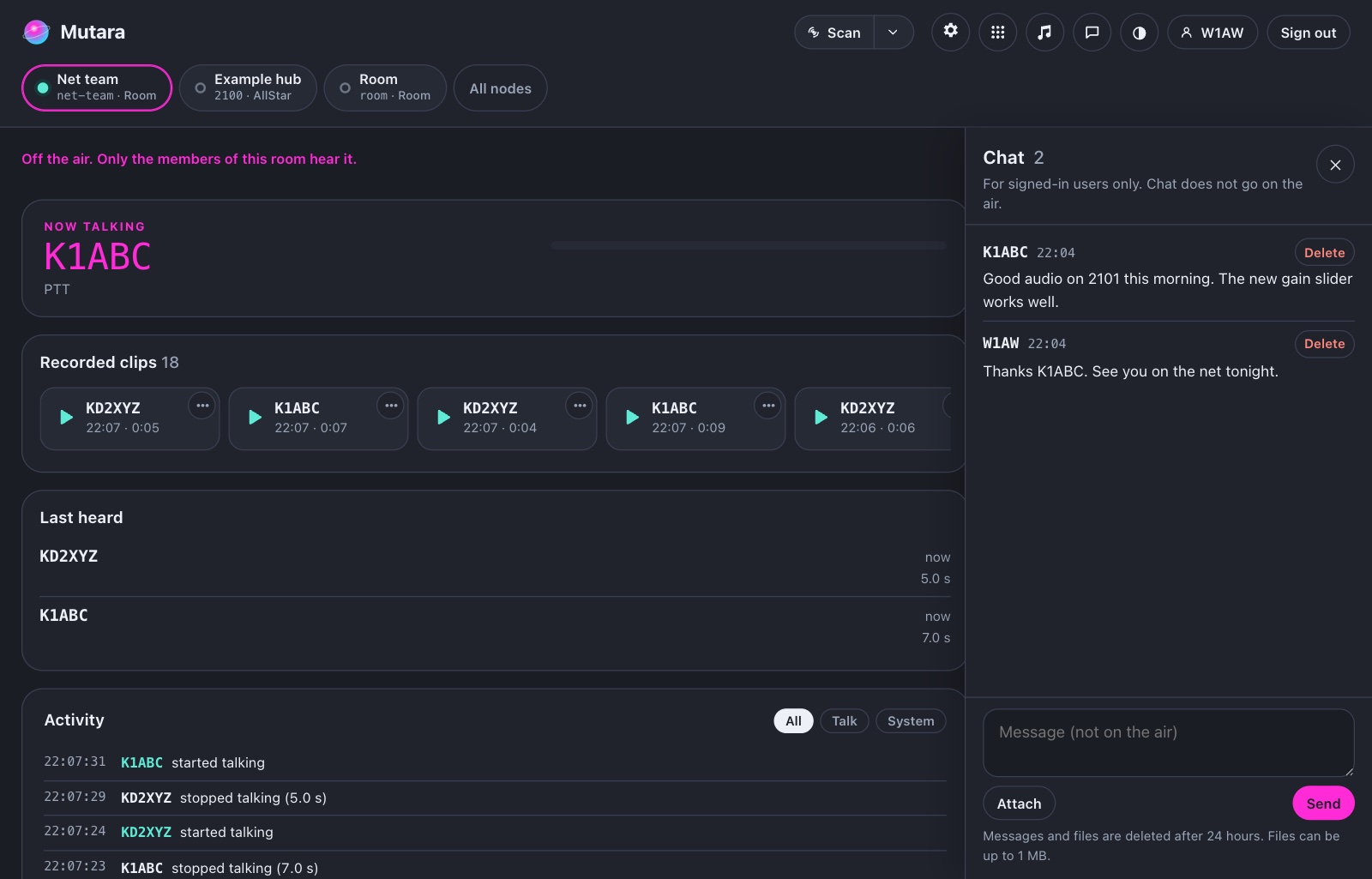
Rooms in the apps #
The Android app and the iPhone and iPad app show a room in the module bar, as the dashboard does.
- The Room card has the pill Off the air. Below the talk button, the app says Only the members of this room hear you.
- The Members card shows each member, who talks and who has open mic.
- The Open mic button turns open mic on and off.
- A user who manages the room also sees Interrupt, and Stop on each member who talks.
The apps do not have Remove. To remove a member, use the dashboard. Read Rooms in the Android app and Rooms in the iPhone and iPad app.
When the room stops your talk #
The room can stop your talk. You still hear the room. The talk button shows the time until you can talk again.
| Cause | What you see | When you can talk again |
|---|---|---|
| Stop by a manager | "An admin stopped your transmission." | After 10 seconds. The mute is on your account, so all your connections to the room are muted. |
| Interrupt by a manager | "An admin is talking. You can talk again when the admin stops." | 2 seconds after the manager stops. |
| The talk threshold | "You talked for 3 min, the limit of this room. You can talk again in 10 s." | After 10 seconds. |
| Open mic idle | "Open mic is off: no speech for 30 min." | At once. Turn on open mic again. |
The browser talk limit (web.talk_limit, 90 seconds by default) also applies to the talk button in a room. The shorter limit stops you.
Manage the members #
You must have Manage on the room, or be an admin. A manager always gets in, also when the room is full, and does not count as a member.
- Interrupt is next to the talk button. Hold it to talk, or press it two times to keep it on. Press it again to let go. All the other members stop and hear only you. When two managers press Interrupt, the first one holds the room. Your clip has the mark Interrupt.
- Stop is on each member who talks or has open mic. It stops the talk and the open mic of that member for 10 seconds. The member stays in the room.
- Remove is on each member, on the dashboard only. The member cannot join the room again for 10 minutes.
Each Interrupt, Stop and threshold stop goes in the service log. Interrupt and Stop also go in the Activity of the room.
Room settings #
Open the room, then Settings. The group Room has the pages Room, Access and Recorded clips. The Room page has:
- Room name.
- Who may listen and Who may talk. Read Who may listen and talk.
- Most members: the most people in the room at one time, from 2 to 256 (default 20). Managers are not counted.
- Open mic, and Open mic turns off after (default 30 min).
- Talk threshold: the room stops a transmission, or open mic speech, that is longer than this (default 3 min).
- Under Bundles and transcripts: Transcripts and Public links to bundles. Read Clips, bundles and transcripts.
- Under Scan: In the default scan list. It is off for a new room.
Result: A change applies at once. Nobody in the room is cut off. A lower Most members applies to new members only.
Who may listen and talk #
A room uses the accounts and the access groups of the install. Read Add accounts.
Who may listen has two choices:
- Signed-in users (default). Users sign in to hear the room.
- Signed-in users and visitors. Anyone who opens the page of the room can listen. A visitor never talks in a room.
Who may talk has two choices:
- Users who can talk on a node (default). A signed-in user who may talk on any node of the install, and the Talk rows of the Access page.
- Only the rows on the Access page. Only the groups and accounts with Talk on the Access page of the room.
For a narrower list, use the Access page of the room:
- Under Give access to, select a group, for example
net-control, then click Add row. - In its row, select what it may do.
- Click the save button.
A room has the actions View, Listen, Talk, Read and Post in the chat, Play and Save clips, Bundles and Manage. It has no Radio, Link or DTMF. On a room, Manage lets a user change the settings of the room, stop or remove members, and interrupt.
A new room with no rows of its own gives the Signed-in accounts group View, Listen, Read, Post and Play. It does not use the defaults for new nodes.
Rooms in the scan #
A room is in the scan only when it is in your scan list. This is also true for Scan all. To add a room, turn on In my scan for it in the Scan priorities panel. An admin can put a room in the default list with In the default scan list.
The scan counts as one member of the room. When the room is full, the scan leaves it out. Read Rooms in the scan.
Clips, bundles and transcripts #
- A room records each talker by default. Each talker gets a clip of their own, also when two members talk at the same time. A clip has the voice of one talker only. To stop the clips, turn off Record talkers on the Recorded clips page of the room.
- Room talkers show in the Last heard and Activity of the room only. They do not show in the lists of the nodes that are on the air.
- A user with Bundles on the room can join the clips of the room into a bundle. Read Bundles and transcripts.
- Transcripts is on by default. The voice server then gets the audio of the room clips to make the text.
- Public links to bundles is off by default. When it is on, and Public links to bundles is also on in Accounts and groups, the owner of a bundle of the room can make a public link.
Caution: When a room must stay private, turn off Transcripts and keep Public links to bundles off. Keep the voice server on your own network.