Bundles and transcripts
A bundle joins clips into one recording, for example a net. It has chapters, a net log and a transcript. It stays after the clips are gone. You can download it as a zip, or share it with a link.
Before you start #
- The node must record clips. Read Chat and recorded clips.
- To make a bundle, your account must have Bundles on the node. Nobody has it by default. An admin gives it on the Access page. Read Who may do what with bundles.
- For a transcript, the node needs a voice server with speech to text. Without it, a bundle has chapters and a net log, but no transcript.
Make a bundle #
- On the dashboard, find the first clip of the net in Recorded clips.
- Open the More menu of the clip and click Bundle from this clip.
- In Up to, select where the bundle stops:
- The newest clip.
- A clip. Then select the Last clip.
- A clock time. Then type the time in Up to the time.
- A quiet time. Then type the minutes in Stop after this many quiet minutes, from 1 to 60. The bundle stops at the first gap of that length.
- Read the summary below the fields. It shows the clips and the length of the bundle.
- Type the Title, for example Tuesday club net. The Description is optional.
- In Keep for, select how long the node keeps the bundle.
- Click Make bundle.
Result: The Bundles page opens. The bundle shows Waiting, then Joining, then the transcript progress. When it is ready, you can play it.
To pick clips one by one, click Bundles in Recorded clips, then New bundle. Select Ticked clips and tick the clips. The clips do not have to be next to each other.
The Bundles button does not show on the All nodes page or in the scan view. Open the dashboard of one module first.
The joined audio has no long silences. A gap of more than 2 seconds between two clips becomes 2 seconds. The chapters, the net log and the transcript keep the real clock times.
Make a bundle in the apps #
The Android app and the iPhone and iPad app can make, play and share bundles.
- In Recorded clips, open the menu of the first clip.
- Tap Bundle from this clip.
- Select where the bundle stops: To the newest clip, To another clip, To a time or a number of quiet minutes.
- Type the Title. The description is optional.
- Tap Make bundle (Android) or Make (iPhone and iPad).
To see the bundles of the node, tap Bundles in Recorded clips. Read Bundles in the Android app and Bundles in the iPhone and iPad app.
The bundle page #
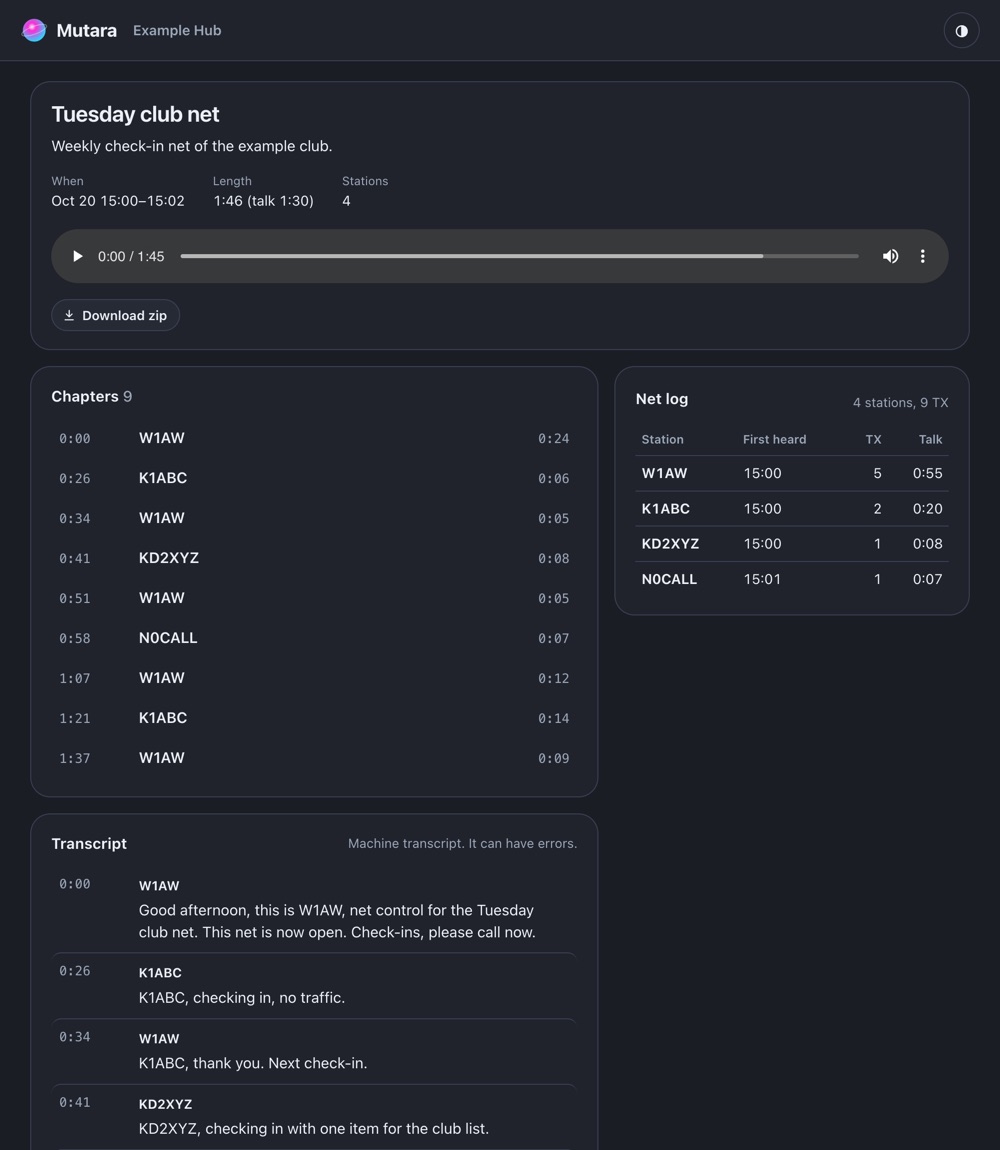
The Bundles page lists the bundles of the node, newest first. Click a bundle to open it. A bundle has:
- A player for the joined audio.
- The details: when, the length, the clips, the size, who made it and how long the node keeps it.
- Chapters: one chapter for each transmission, with the talker and the time. Click a chapter to play from there.
- Transcript: the text of each transmission, with the talker and the time. Read Transcripts.
- Net log: each station with First heard, the number of transmissions (TX) and the Talk time, and a total line.
When a bundle cannot be made, it shows Failed and "The bundle could not be made:" with the reason. The owner can click Try again.
Transcripts #
A transcript is the text of the speech in a clip or a bundle. The voice server makes it with speech to text. Mutara finds out if your voice server has speech to text. You set nothing more.
- A new bundle gets a transcript on its own when the voice server has speech to text.
- To make the transcript again, open the bundle and click Transcribe again. A bundle with no transcript has Make transcript.
- To make the transcript of one clip, open the More menu of the clip and click Transcribe. The clip shows Transcribing, then Text. It can take a minute.
- To read the text of a clip, open its More menu and click Show transcript.
Each transcript has the label "Machine transcript. It can have errors." A line that the speech to text was not sure of has a mark. The Transcript hint setting helps the speech to text with words that it hears often on your node, for example the name of the net. The node adds the callsigns of the talkers.
Note: A transcript can be wrong, mainly for callsigns and weak signals. Do not use it as an official log without a check.
Fix a transcript line #
You must be the owner of the bundle, or an admin.
- In the Transcript of the bundle, click Fix next to the line.
- Type the correct text.
- Click Save.
Result: The line has the mark Fixed. The zip and the public links show the fixed text.
To go back to the machine text, clear the text and click Save.
Download the zip #
Open the bundle and click Download zip. You need Save (download) on the node. The name of the file is like mutara-2026-10-20-1900-Tuesday-club-net.zip. The zip holds:
audio.m4a: the joined audio. It is Opus audio in an MP4 file.transcript.txt: the title, the net log and the lines with their times.transcript.vtt: the lines as WebVTT captions.bundle.json: the details, the chapters, the net log and the lines.
Share a bundle with a link #
A public link lets a person with no account play the bundle for a time. Public links are off by default. An admin turns on Public links to bundles in Settings, Accounts and groups. A room also needs Public links to bundles on its Room page.
- Open the bundle and click Public links.
- In Open for, select 1, 7 or 30 days.
- To let the person download the zip, select Allow download of the zip.
- Click Make link.
- Click Copy, and send the link.
Result: The link opens a page with the player, the chapters, the net log and the transcript.
Caution: Copy the link at once. The page does not show it again. The node keeps only a hash of it.
- A link ends after its days, or when the bundle ends, if that is sooner.
- To stop a link at once, click Revoke. The link stops for all who have it.
- The shared page shows callsigns, not account names.
- A link that ended or was revoked says: "It was revoked, or it ended. Ask the person who sent it for a new link."
- To stop all links of the install at once, an admin turns off Public links to bundles.
Change or delete a bundle #
- Open the bundle and click Change.
- Change the Title, the Description or Keep for.
- Click Save.
The keep time counts from when the bundle was made. To delete a bundle, click Delete, then confirm. The public links of the bundle stop. You cannot undo this.
Who may do what with bundles #
| To do this | You need |
|---|---|
| See the bundles, play them and read the transcripts | Listen on the node |
| Download the zip | Save on the node |
| Make a bundle, and transcribe a clip | Bundles on the node |
| Change a bundle, try again, transcribe again, fix lines and make links | The owner of the bundle, or an admin |
| Delete a bundle | The owner, a user with Manage on the node, or an admin |
To give Bundles, open Settings, Access of the node. Select Bundles in the row of a group, for example net-control. Bundles also gives View, Listen and Play. Read Who may do what on a node.
Settings and limits #
Each node and each room has its own bundle settings. In Settings, open Recorded clips. The section Bundles has:
- Bundles: on by default.
- Longest keep time: 1 day, 7 days, 30 days (default) or Forever. A shorter value also applies to the bundles that are there now.
- Bundle storage limit (MB): all the bundles of the node together (default 1000).
- Transcript hint: words for the speech to text, at most 200 characters.
The limits of one bundle:
- 1000 clips at most.
- 4 hours of audio at most.
- A quiet time of 1 to 60 minutes.
When the bundle storage is full, the node refuses a new bundle. It says, for example, "Bundle storage is full (980 of 1000 MB). Delete a bundle, or ask an admin for more room." The node never deletes a bundle to make space.
Storage and clean-up #
- A bundle has its own copy of the clips. When the node deletes the old clips, the bundle stays.
- Each hour, the node deletes the bundles whose keep time has ended.
- The first node keeps its bundles in
bundles/in the state folder. Each other module and each room keeps them inmodules/<id>/bundles/. - A clip transcript is a file
<clip>.stt.jsonnext to the clip.
Read The state folder.
Privacy #
- A transcript sends the audio of the clips to your voice server. Keep the voice server on your own network.
- A room can turn off Transcripts. Then no audio of the room goes to the voice server. Read Clips, bundles and transcripts.
- A public link shows the bundle to anyone who has the link, until it ends. Make links only for bundles that you may share.