Announcements and weather
The node identifies, says the links and the time, and can speak weather alerts. You set when and how it speaks.
Set the station ID #
- In Settings, under On the air, click Station.
- In Station ID, select CW, Voice or CW and voice.
- In ID interval, type how often the node identifies, for example
10m. - Click the save button.
Result: While the node is in use, it identifies at this interval.
The ID uses the callsign. To send a different text, for example "N0CALL/R", open More settings and type it in ID text. You can also set the CW speed there.
Select the voice #
The node speaks the link, status and time announcements. It has a built-in voice, Allison, which needs no internet.
- In Settings, under On the air, click Announcements.
- In Announcements, select Voice or CW.
- Click the save button.
Turn on Say IP addresses at start to hear the address of the node on the radio after each start. This helps you find the dashboard.
Use a voice server
A voice server is an optional program that changes text into speech. Mutara uses a Kokoro voice server. With a voice server, the node can say node names, callsigns and weather alerts.
- Set up a Kokoro voice server on a computer in your home network. The voice server guide tells you how.
- On the Announcements page, type its address in Voice server, for example
http://127.0.0.1:7374. - In Voice server voice, select a voice.
- Click the save button.
Caution: The voice server has no password. Do not make it available on the internet.
Say the time each hour #
- On the Announcements page, turn on Say the time each hour.
- In Report hours, type the first and last hour, for example
7-22. - Click the save button.
Result: At the top of each hour from 7:00 to 22:00, the node says the time.
Announcements wait for a quiet channel #
The node does not talk over people. The station ID and the announcements wait until nobody has talked for 2 seconds. Then they play together, the ID first. If the channel stays busy, they continue to wait. They do not expire, and the node says the time and the weather as they are when it plays them. Only the timeout warning plays over a talker.
If the channel stays busy for the full ID interval, the node sends a CW ID. On a simplex radio, the node never transmits while it receives a signal.
To change the 2 seconds, open More settings on the Announcements page and type a time from 1s to 10s in Announce when quiet for.
Speak weather alerts #
The node can speak the weather alerts for your area, from weather.gov. This works in the United States only, and needs a voice server.
- In Settings, under On the air, click Weather.
- Turn on Speak weather alerts.
- Click Use my location, or type the position.
- Click Find my area.
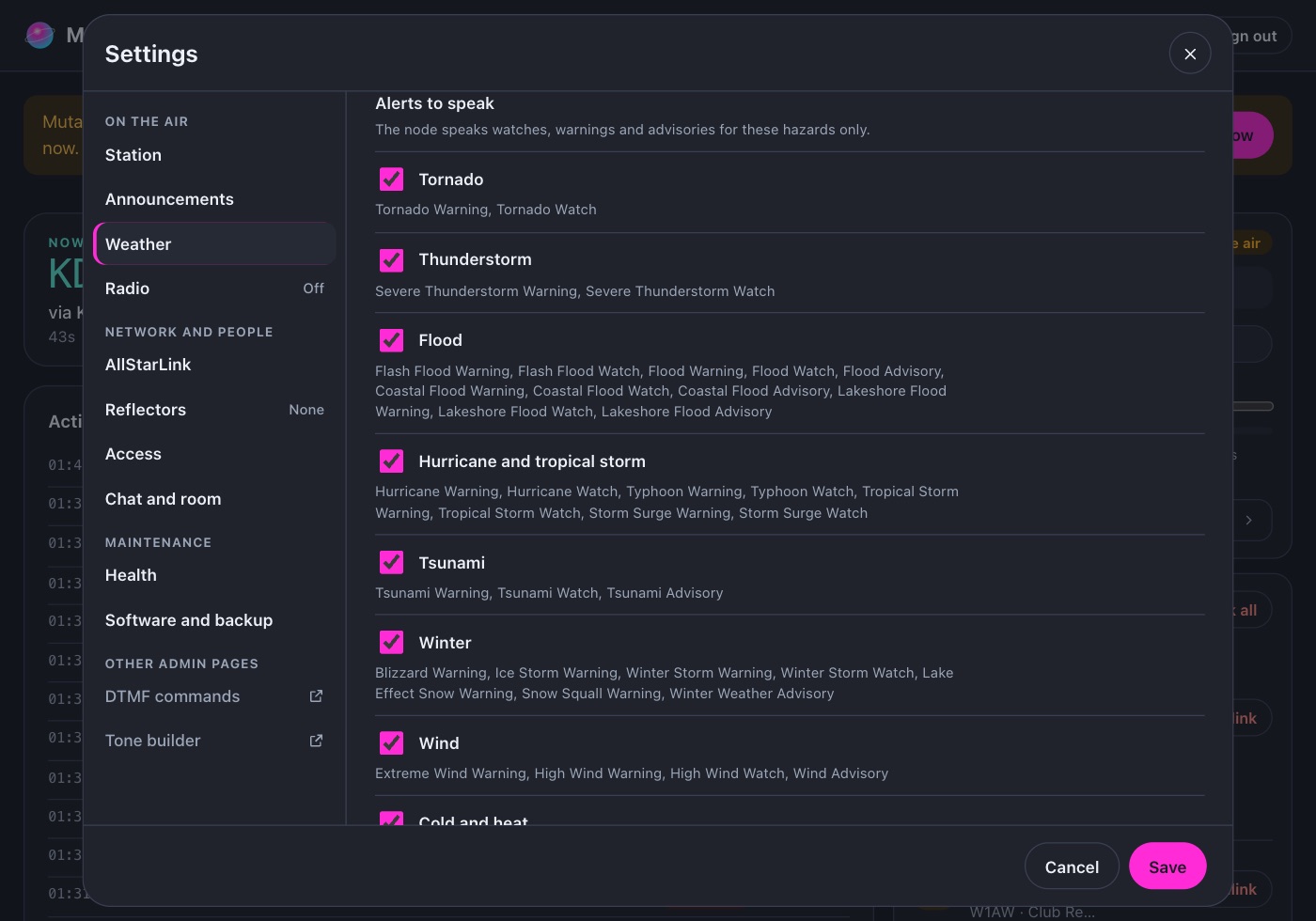
- In Alerts to speak, select the types of alerts.
- Click the save button.
Result: The node says each new weather alert for your area.
Note: The browser gives your location only on a secure page. Open the dashboard with its https:// address, or type the position.
Other weather settings:
- Say the all clear: the node says "All weather alerts have ended" when the last alert ends.
- Alert reminder after traffic: after a conversation, the node says the alerts that are in effect.
- Say the current weather: the node gives the current weather in the report hours, for example every hour.
To hear the current weather and the alerts at any time, send *76.