Scan
The scan lets you hear all your modules on one connection, as a radio scanner does. The node plays the module that is active. Give a module a priority to hear it first.
Note: You need more than one module. Read Nodes and modules.
Start the scan #
The Scan button shows in the top bar when you can listen to more than one module.
- Click Scan in the top bar.
- Wait for a module to become active.
To choose what the scan plays, click the arrow next to Scan (on a phone dashboard, open the ⋯ menu) and pick one:
- Scan all plays all the modules that you may listen to. A room is in it only when the room is in your scan list.
- Scan my list plays only the modules in your scan list. Read Make your scan list.
The menu marks your last pick, and Scan starts with it. The browser keeps the pick. The scan bar shows the mode, for example Scan my list.
The apps also have both modes:
- Android: tap Scan. The Scan dialog asks for Scan all or Scan my list. The scan card shows the mode. Tap Change to pick the other mode.
- iPhone and iPad: tap Scan to start with your last pick. Touch and hold Scan to pick Scan all or Scan my list. The All nodes card also has both buttons.
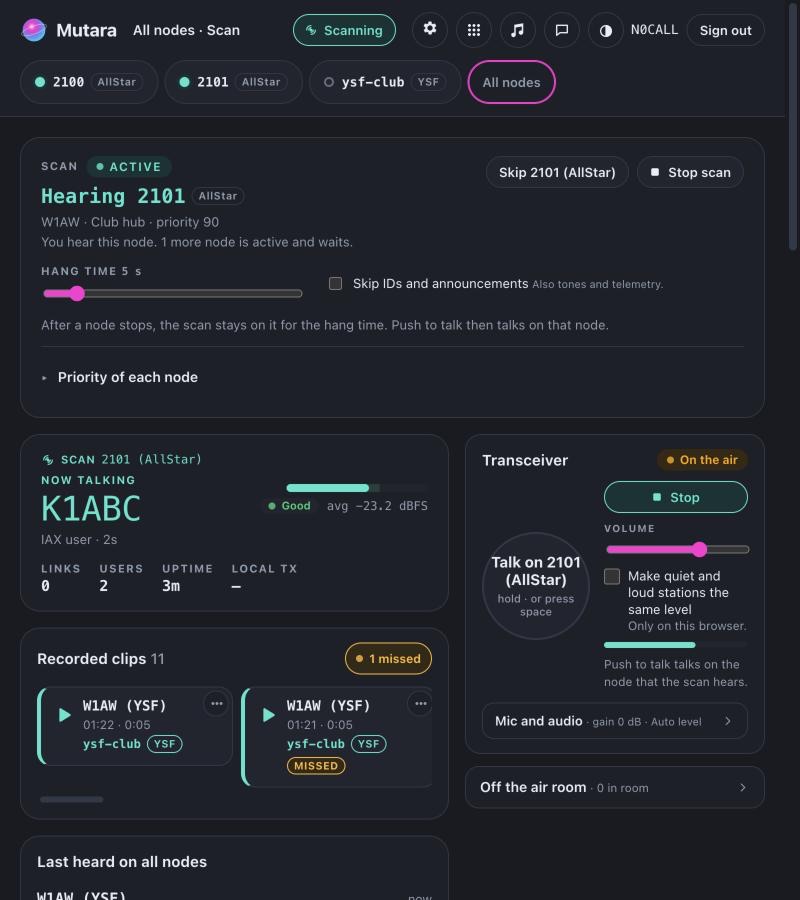
Result: The scan bar shows the module that you hear, for example Hearing 2101 (AllStar), with its callsign, name and priority.
The scan uses one audio stream. The node selects the module and sends only its audio, so you hear the start of each transmission. To stop, click Stop scan.
The scan view #
When you start the scan on a dashboard, the page shows all the modules that you scan. The top bar shows All nodes · Scan, and the module bar marks All nodes.
- The top card shows the module that the scan plays, so the talker on the page is the talker that you hear.
- Recorded clips, Last heard and Activity show all the scanned modules. Each event names its module, for example "W1AW (YSF) started talking on ysf-club (YSF)".
- The cards for one module only, such as the links, do not show.
While no module is active, the top card stays on the last module. When you stop the scan, the page shows the module of the page again.
Set the hang time #
After a module stops, the scan stays on it for the hang time. Then it goes to the next active module.
- Move the Hang time slider in the scan bar.
The range is 2 to 30 seconds. The default is 5 seconds. During the hang time, the scan bar shows the time that is left.
When two modules with the same priority are active, the scan stays on the module that you hear until its hang time ends. Then it goes to the active module that started last.
Set the priority of a module #
Some modules are more important to you than others, for example a module for a net. Give each module a priority from 0 to 99. 0 is no priority.
- When a module with a higher priority starts, the scan goes to it at once, also in the middle of a transmission.
- A module with the same priority waits until the hang time ends.
- A module with a lower priority waits. It never takes the scan from a module with a higher priority.
- Open the Scan priorities panel. You do not have to start the scan first. Do one of these steps:
- In the top bar, click the arrow next to Scan, then Scan priorities.
- On a phone, open the ⋯ menu and tap Scan priorities.
- While you scan, click Change scan priorities in the scan bar.
- On the All nodes page, click Scan priorities below the list.
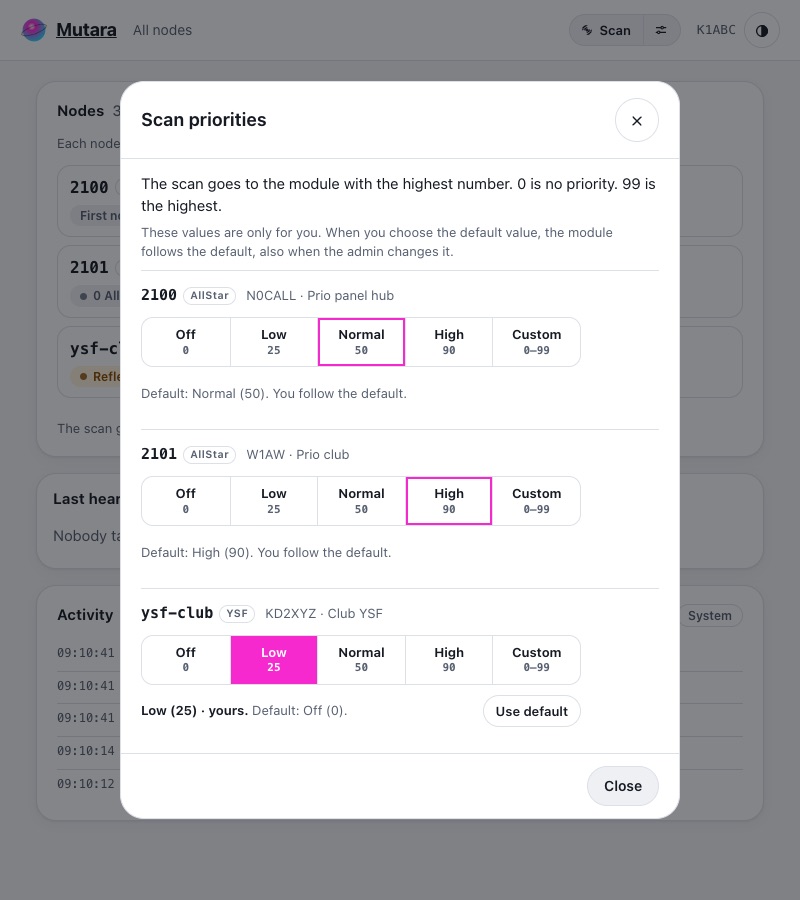
- For each module, choose Off (0), Low (25), Normal (50) or High (90). To set a different number, choose Custom and type a number from 0 to 99.
Result: The panel shows Saved. The row shows your value, for example High (90) · yours. The change applies at once. The scan does not connect again. If the save fails, the panel shows the error.
A row without your own value shows the default, for example Default: Normal (50). You follow the default. To use the default of the admin again, click Use default. When you choose the default value, the module also follows the default, also when the admin changes it later.
The node keeps your values for your account, so the browser and the apps use the same values. If you are not signed in, the scan uses the defaults.
While you scan, the scan bar shows the priority of the module that you hear and whose value it is, for example priority 50 (yours) or priority 90 (default).
Set the default priority
You must be an admin.
- Open the Scan priorities panel. You can also open it from Settings, Modules, Open Scan priorities.
- In the column Default for everyone, choose the default of each module.
Result: The change applies at once. You do not need Save. Users who have their own value for a module keep it. The column shows how many users set their own value, for example 3 users set their own value.
The column Yours is your own value as a user. It is only for you. It does not change the default for the other users.
Example
The defaults are: 2100 is 0, 2101 is 90 and ysf-club is 0.
- W1AW talks on 2100. You hear W1AW.
- K1ABC starts on 2101. The scan goes to 2101 at once. W1AW still talks on 2100, but you do not hear it.
- KD2XYZ starts on ysf-club. It waits, because 0 is lower than 90.
- K1ABC stops. The scan stays on 2101 for the hang time. Then it goes to the active module with the highest priority. 2100 and ysf-club are both 0, so it goes to the module that started last: ysf-club.
Make your scan list #
Your scan list is the modules that Scan my list plays. Rooms are in Scan all only when they are in your list.
- Open the Scan priorities panel.
- For each module, turn In my scan on or off.
Result: The panel shows Saved. An open scan uses the change at once: a module that leaves the list leaves the scan, and a module that joins the list joins it.
The admin sets the default list. An AllStar, YSF, DMR or M17 module is in it unless the admin takes it out. A room is not in it unless the admin puts it there. The row says whose value it is, for example yours. Default: in the list. When you pick the value of the default, the module follows the default again. The node keeps your list for your account, so the browser and the apps agree.
When your list is empty, Scan my list plays nothing. The scan bar says Your scan list is empty. The apps then show Choose modules and Scan all.
In the apps, the In my scan switch of each module is on the Scan priorities screen.
Set the default list
You must be an admin. In the Scan priorities panel, open Default for everyone of a module and turn In the default scan list on or off. For a room, you can also set it in Settings, Modules, in the settings of the room. Users who set their own value keep it.
Rooms in the scan
- The scan hears all the talkers of a room, as a member does. It counts as one member of the room.
- When the room is full, the scan leaves it out. The scan bar says, for example, net-team (Room) is full. The scan joins it when there is room.
- When a manager removes you from the room, the scan leaves the room out until you may join again.
- The talk button talks in the room when you may talk there. A manager's Stop and Interrupt and the talk threshold of the room stop you, as on the room's page.
Read Rooms.
Skip a module and bring it back #
- While you hear a module, click Skip. The button names the module, for example Skip 2101 (AllStar).
- To hear that module again, click Bring back next to it in the list of skipped modules.
A skipped module stays skipped, with any priority. When you stop the scan, the list of skipped modules is cleared.
Skip IDs and announcements #
Usually the scan stops for all audio: voice, station IDs, announcements, courtesy tones and telemetry. Select Skip IDs and announcements to make the scan stop for voice only. Then IDs and announcements do not take the scan, with any priority.
This browser keeps the hang time and this option.
Talk while you scan #
- Wait until you hear a module, or until the scan bar shows the hang time.
- Hold the talk button. The button names the module, for example Talk on 2101 (AllStar).
- Speak, then release the button.
Result: Only that module hears you. The scan stays on it while you talk and for the hang time after.
While you talk, a module with a higher priority does not take the scan. The scan bar shows it as waiting, for example "2101 (AllStar) waiting · priority 90". When you stop and the hang time ends, the scan goes to it at once if it is still active.
When no module is active, the talk button does not work. You must have permission to talk on the module.
On a YSF module, you cannot talk while the reflector is busy. The scan bar shows "Reflector busy: W1AW is talking. Talkback waits." Read The reflector is half duplex.
Look at one module while you scan #
- While the scan runs, click a module in the module bar.
Result: The page shows that module only. The scan audio continues. The scan bar still shows the module that you hear, and it has Back to scan.
- Click Back to scan, or All nodes in the module bar.
Result: The page shows the scan view again.
Find the clips that you missed #
When the scan plays one module, you do not hear the others. The scan view and the All nodes page mark the clips that you did not hear.
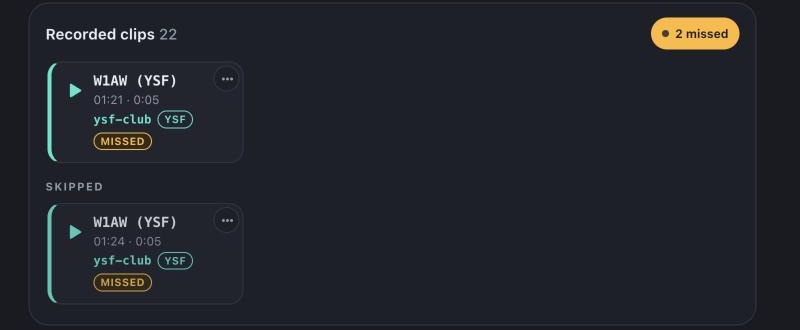
- A clip has a Missed mark when the scan did not play its module while the clip was recorded.
- The clips of a module that you skipped are in a separate group, Skipped.
- A button shows the number of missed clips, for example 2 missed. Click it to show only the missed clips. Click it again to show all clips.
- When you play a missed clip, the mark goes away.
This browser keeps the missed marks for one scan session. The node does not keep them. The dashboard of one module shows only the clips of that module, with no Missed marks.
Scan from the All nodes page #
The All nodes page also has a Scan button. It uses the same hang time, skip option and priorities. The list marks the module that you hear.
This scan only listens. To talk, open the dashboard of a module, then start the scan there. When you open a dashboard from the All nodes page, the scan of the All nodes page stops.
Note: Each module that you scan makes its station ID while the scan is open. This occurs also while the scan plays a different module.
The apps have a scan too. Read Modules and scan in the Android app and All nodes and scan in the iPhone and iPad app.